
Flutter State Management with Cubit for Beginners
Managing the state of your application is a crucial aspect of building robust and scalable Flutter apps. As your application grows, handling data flow and UI updates can become complex without a proper strategy. This article introduces Cubit, a simpler variant of the Bloc pattern, as an excellent starting point for beginners to understand and implement state management in Flutter.
What is State Management and Why Cubit?
In Flutter, "state" refers to any data that can change during the lifetime of the application and affects the UI. For instance, the text displayed on a screen, the items in a list, or the authentication status of a user are all part of an app's state.
Without a structured approach to state management, updating the UI in response to data changes can lead to:
- Unpredictable behavior and bugs.
- Difficulty in tracking data flow.
- Poor code maintainability and readability.
Cubit, part of the flutter_bloc ecosystem, offers a straightforward way to separate business logic from the UI. It's built on the same principles as Bloc but with less boilerplate, making it easier to grasp for those new to reactive state management.
Prerequisites
Before diving into Cubit, it's assumed you have a basic understanding of:
- Flutter fundamentals (widgets, `StatefulWidget` vs `StatelessWidget`).
- Dart programming language basics.
Core Concepts of Cubit
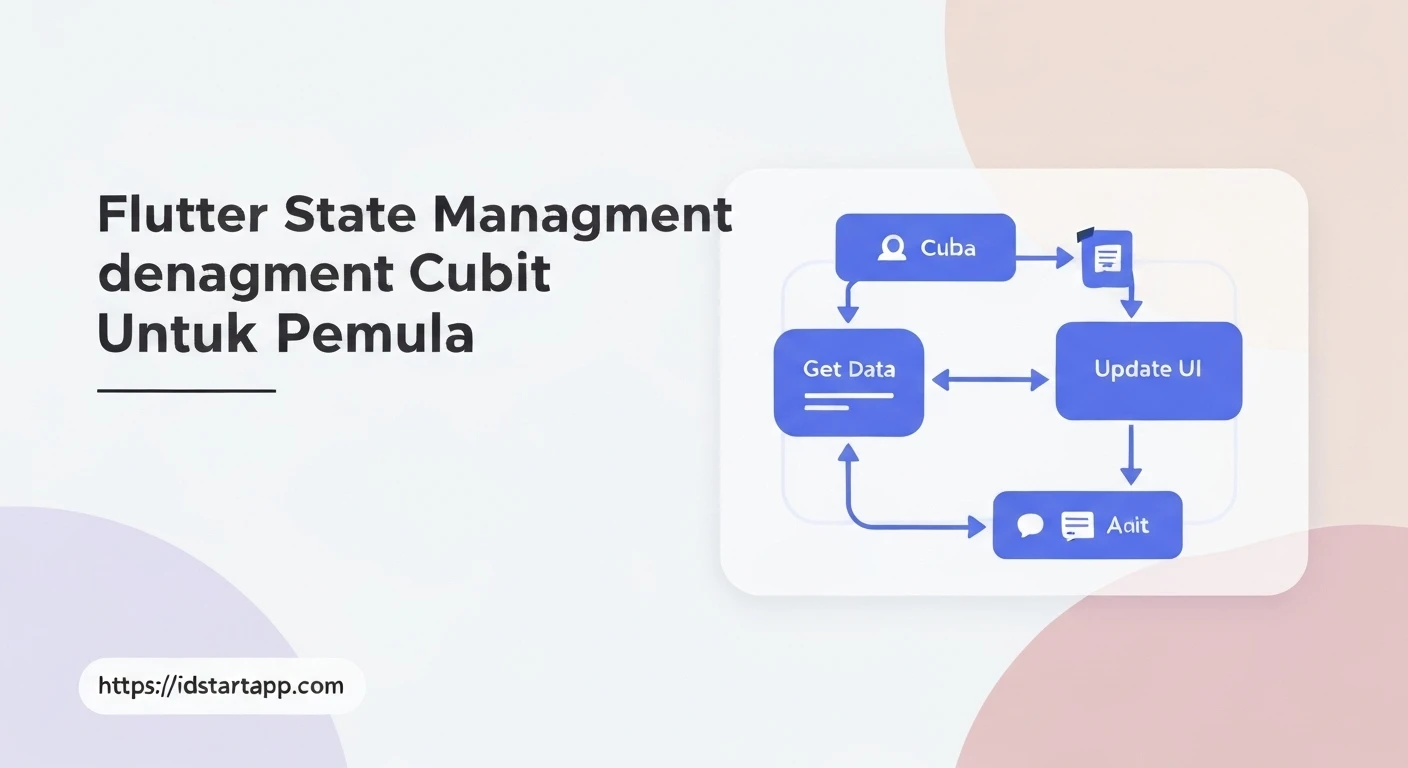
Cubit simplifies the concept of managing state by focusing on a few key components:
1. State
The "State" is the actual data that your UI displays. In Cubit, states are usually represented by immutable Dart classes. When the state changes, the UI updates.
2. Cubit
A "Cubit" is a class that stores the current state and exposes methods to update it. Unlike a traditional Bloc which uses events, a Cubit directly exposes methods that can be called to change its state. It emits new states to its listeners.
3. BlocProvider
BlocProvider is a Flutter widget that provides a Cubit (or Bloc) to its children down the widget tree. This allows you to access your Cubit from any widget below the BlocProvider in a clean and efficient manner.
4. BlocBuilder
BlocBuilder is a Flutter widget that rebuilds a part of your UI in response to new states emitted by a Cubit. It takes a builder function that will be called whenever the Cubit's state changes, allowing you to reactively update your UI.
Step-by-Step Example: A Simple Counter App
Let's build a basic counter application to demonstrate Cubit in action.
1. Project Setup
First, create a new Flutter project:
flutter create cubit_counter_app
cd cubit_counter_app
2. Add Dependencies
Open your pubspec.yaml file and add the flutter_bloc and equatable packages:
dependencies:
  flutter:
    sdk: flutter
  flutter_bloc: ^8.1.3 # Use the latest version
  equatable: ^2.0.5 # For easier state comparison
Then run flutter pub get to fetch the packages.
3. Define the State
Create a new file, e.g., lib/counter_state.dart, to define our counter state. We'll use Equatable to easily compare state instances.
import 'package:equatable/equatable.dart';

class CounterState extends Equatable {
  final int counterValue;

  const CounterState({required this.counterValue});

  @override
  List<Object> get props => [counterValue];
}
Our CounterState simply holds an integer counterValue.
4. Create the Cubit
Next, create lib/counter_cubit.dart to define our CounterCubit:
import 'package:flutter_bloc/flutter_bloc.dart';
import 'package:cubit_counter_app/counter_state.dart';

class CounterCubit extends Cubit<CounterState> {
  // Initialize the cubit with an initial state
  CounterCubit() : super(const CounterState(counterValue: 0));

  // Method to increment the counter
  void increment() {
    emit(CounterState(counterValue: state.counterValue + 1));
  }

  // Method to decrement the counter
  void decrement() {
    emit(CounterState(counterValue: state.counterValue - 1));
  }
}
In this Cubit:
- It extends
Cubit<CounterState>, indicating it manages states of typeCounterState. - The constructor calls
super()to set the initial state (counterValue: 0). increment()anddecrement()methods are defined. Inside these methods,emit()is called with a newCounterStateinstance to update the state.
5. Integrate with UI
Now, let's connect our Cubit to the Flutter UI. We'll modify lib/main.dart and create a separate HomePage widget.
First, modify lib/main.dart:
import 'package:flutter/material.dart';
import 'package:flutter_bloc/flutter_bloc.dart';
import 'package:cubit_counter_app/counter_cubit.dart';
import 'package:cubit_counter_app/home_page.dart';

void main() {
  runApp(const MyApp());
}

class MyApp extends StatelessWidget {
  const MyApp({super.key});

  @override
  Widget build(BuildContext context) {
    return BlocProvider(
      create: (context) => CounterCubit(),
      child: MaterialApp(
        title: 'Cubit Counter App',
        theme: ThemeData(
          primarySwatch: Colors.blue,
        ),
        home: const HomePage(),
      ),
    );
  }
}
Here, we wrap our MaterialApp with a BlocProvider<CounterCubit>. The create callback provides an instance of CounterCubit, making it available to all widgets below it in the tree.
Next, create lib/home_page.dart:
import 'package:flutter/material.dart';
import 'package:flutter_bloc/flutter_bloc.dart';
import 'package:cubit_counter_app/counter_cubit.dart';
import 'package:cubit_counter_app/counter_state.dart';

class HomePage extends StatelessWidget {
  const HomePage({super.key});

  @override
  Widget build(BuildContext context) {
    return Scaffold(
      appBar: AppBar(
        title: const Text('Cubit Counter'),
      ),
      body: Center(
        child: Column(
          mainAxisAlignment: MainAxisAlignment.center,
          children: <Widget>[
            const Text(
              'You have pushed the button this many times:',
            ),
            // BlocBuilder listens to state changes and rebuilds its child
            BlocBuilder<CounterCubit, CounterState>(
              builder: (context, state) {
                return Text(
                  '${state.counterValue}',
                  style: Theme.of(context).textTheme.headlineMedium,
                );
              },
            ),
          ],
        ),
      ),
      floatingActionButton: Column(
        mainAxisAlignment: MainAxisAlignment.end,
        children: [
          FloatingActionButton(
            onPressed: () {
              // Access the Cubit and call its increment method
              context.read<CounterCubit>().increment();
            },
            tooltip: 'Increment',
            child: const Icon(Icons.add),
          ),
          const SizedBox(height: 10),
          FloatingActionButton(
            onPressed: () {
              // Access the Cubit and call its decrement method
              context.read<CounterCubit>().decrement();
            },
            tooltip: 'Decrement',
            child: const Icon(Icons.remove),
          ),
        ],
      ),
    );
  }
}
In HomePage:
- We use
BlocBuilder<CounterCubit, CounterState>to listen for changes inCounterCubit's state. Whenever a newCounterStateis emitted, thebuilderfunction runs, updating theTextwidget with the newcounterValue. - For the
FloatingActionButtons, we usecontext.read<CounterCubit>()to get an instance of our Cubit and then call itsincrement()ordecrement()methods directly. This triggers the Cubit to emit a new state.
Run the Application
You can now run your Flutter application:
flutter run
You should see a counter app where tapping the '+' or '-' buttons updates the counter value on the screen, demonstrating Cubit-based state management.
Why Cubit is Great for Beginners
- Simplicity: Cubit avoids the complexity of events and mapping events to states, which can be overwhelming for newcomers. You directly call methods on the Cubit to update the state.
- Less Boilerplate: Compared to Bloc, Cubit requires less code for setup, making it quicker to get started and understand the core concepts.
- Direct Method Calls: The direct method invocation (`cubit.increment()`) feels more intuitive and similar to traditional programming paradigms.
- Foundation for Bloc: Learning Cubit provides a solid foundation for understanding Bloc, as Cubit is essentially a Bloc without events. Once comfortable with Cubit, transitioning to Bloc for more complex scenarios becomes easier.
Conclusion
Cubit offers an elegant and simple solution for state management in Flutter, especially for beginners. By separating business logic from UI, it promotes cleaner, more maintainable, and testable code. Through the simple counter example, you've learned how to define states, create Cubits, and integrate them with your Flutter UI using BlocProvider and BlocBuilder. As you grow more confident, you can explore other features of the flutter_bloc package, such as BlocListener for side effects and the full Bloc pattern for more intricate event-driven logic.