
Building a Widget List with Sticky Header in Flutter
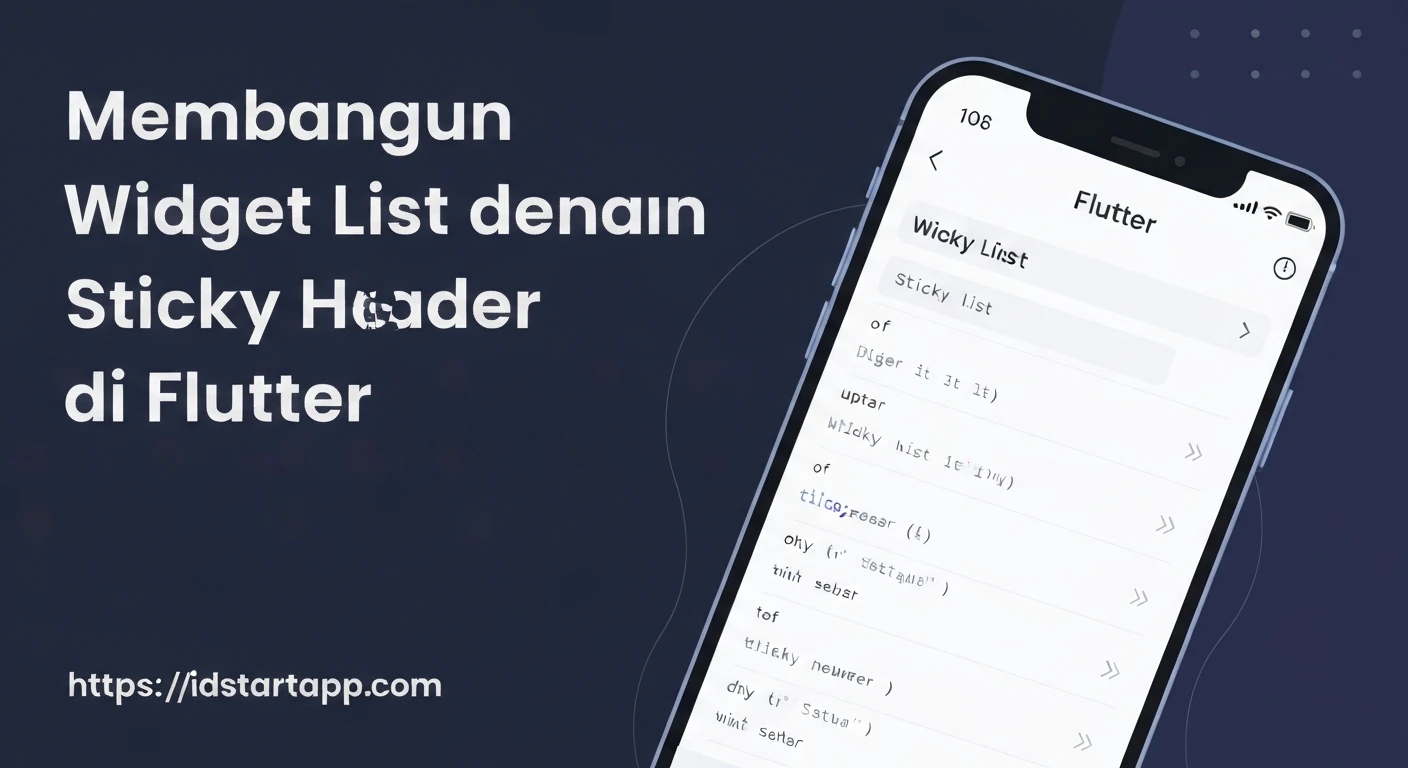
Creating dynamic and engaging user interfaces is crucial for modern applications. One common UI pattern that significantly enhances user experience, especially in long lists, is the "sticky header." A sticky header remains visible at the top of the scrollable area even as the user scrolls through the list content below it, providing constant context or navigation. This article will guide you through building a widget list with a sticky header in Flutter, leveraging its powerful slivers architecture.
Understanding Sticky Headers and Their Benefits
A sticky header, also known as a section header or floating header, is a header element within a scrollable list that "sticks" to the top of the viewport once its scroll position reaches the top. As the user continues to scroll, the sticky header remains in place until the next section's header pushes it off the screen.
Key benefits include:
- Improved Navigation: Users always know which section of the list they are currently viewing.
- Enhanced Context: Provides immediate context for the displayed items, reducing cognitive load.
- Better UX: Makes long lists easier to scan and navigate, leading to a more pleasant user experience.
Flutter's Approach to Scrollable UI: Slivers and CustomScrollView
Flutter handles complex scrollable layouts using a concept called "slivers." Slivers are portions of a scrollable area that can be configured to behave in special ways. They are highly optimized for building custom scroll effects and are the backbone of widgets like ListView, GridView, and more advanced scroll views.
The primary widget for assembling various slivers into a single scrollable view is CustomScrollView. Unlike ListView, which is a specialized sliver itself, CustomScrollView acts as a wrapper that takes a list of Sliver widgets as its children.
For building a sticky header list, we will primarily use:
CustomScrollView: The main scrollable container.SliverPersistentHeader: To create the sticky headers.SliverList: To display the list items within each section.
Step-by-Step Implementation
Let's walk through the process of creating a contacts list grouped by the first letter, where each letter acts as a sticky header.
1. Define the Data ModelFirst, we need a data structure to represent our contacts and the sections they belong to.
class Contact {
  final String name;
  final String phoneNumber;

  Contact({required this.name, required this.phoneNumber});
}

class Section {
  final String header;
  final List<Contact> contacts;

  Section({required this.header, required this.contacts});
}
StickyHeaderDelegate
To create a custom sticky header, we need to extend SliverPersistentHeaderDelegate. This delegate provides methods to define the header's layout, its minimum and maximum height, and when it should be rebuilt.
import 'package:flutter/material.dart';

class StickyHeaderDelegate extends SliverPersistentHeaderDelegate {
  final String headerText;
  final Color backgroundColor;
  final Color textColor;

  StickyHeaderDelegate({
    required this.headerText,
    this.backgroundColor = Colors.blueGrey,
    this.textColor = Colors.white,
  });

  @override
  Widget build(BuildContext context, double shrinkOffset, bool overlapsContent) {
    return Container(
      color: backgroundColor,
      alignment: Alignment.centerLeft,
      padding: EdgeInsets.symmetric(horizontal: 16.0),
      child: Text(
        headerText,
        style: TextStyle(
          color: textColor,
          fontSize: 20,
          fontWeight: FontWeight.bold,
        ),
      ),
    );
  }

  @override
  double get maxExtent => 60.0; // The maximum height of the header
  @override
  double get minExtent => 60.0; // The minimum height of the header when it's sticky

  @override
  bool shouldRebuild(covariant StickyHeaderDelegate oldDelegate) {
    // Rebuild only if header content or styling changes
    return oldDelegate.headerText != headerText ||
           oldDelegate.backgroundColor != backgroundColor ||
           oldDelegate.textColor != textColor;
  }
}
In this delegate:
build: Defines the visual appearance of the header. It receivesshrinkOffset(how much the header has shrunk) andoverlapsContent(whether the header is being overlapped by content above it), which can be used for animations or visual adjustments.maxExtentandminExtent: Crucial properties that define the maximum and minimum height of your header. For a fixed-height sticky header, these values will often be the same.shouldRebuild: Determines if the delegate needs to rebuild its widget.
Now, let's put everything together in a StatefulWidget that holds our list data and constructs the CustomScrollView.
import 'package:flutter/material.dart';

// Assuming Contact, Section, and StickyHeaderDelegate classes are defined above or in separate files.

void main() {
  runApp(MyApp());
}

class MyApp extends StatelessWidget {
  @override
  Widget build(BuildContext context) {
    return MaterialApp(
      title: 'Sticky Header List',
      theme: ThemeData(
        primarySwatch: Colors.blue,
        visualDensity: VisualDensity.adaptivePlatformDensity,
      ),
      home: StickyHeaderListPage(),
    );
  }
}

class StickyHeaderListPage extends StatefulWidget {
  @override
  _StickyHeaderListPageState createState() => _StickyHeaderListPageState();
}

class _StickyHeaderListPageState extends State<StickyHeaderListPage> {
  final List<Section> _sections = [
    Section(
      header: 'A',
      contacts: [
        Contact(name: 'Alice Smith', phoneNumber: '123-456-7890'),
        Contact(name: 'Anna Johnson', phoneNumber: '098-765-4321'),
      ],
    ),
    Section(
      header: 'B',
      contacts: [
        Contact(name: 'Bob Williams', phoneNumber: '111-222-3333'),
        Contact(name: 'Brenda Jones', phoneNumber: '444-555-6666'),
      ],
    ),
    Section(
      header: 'C',
      contacts: [
        Contact(name: 'Charlie Brown', phoneNumber: '777-888-9999'),
        Contact(name: 'Catherine Davis', phoneNumber: '000-111-2222'),
        Contact(name: 'Chris Miller', phoneNumber: '333-444-5555'),
      ],
    ),
    Section(
      header: 'D',
      contacts: [
        Contact(name: 'David Wilson', phoneNumber: '666-777-8888'),
        Contact(name: 'Diana Moore', phoneNumber: '121-343-5656'),
      ],
    ),
    Section(
      header: 'E',
      contacts: [
        Contact(name: 'Eve Taylor', phoneNumber: '999-000-1111'),
      ],
    ),
    Section(
      header: 'F',
      contacts: [
        Contact(name: 'Frank White', phoneNumber: '222-333-4444'),
        Contact(name: 'Fiona Garcia', phoneNumber: '555-666-7777'),
      ],
    ),
    Section(
      header: 'G',
      contacts: [
        Contact(name: 'Grace Martinez', phoneNumber: '888-999-0000'),
      ],
    ),
    Section(
      header: 'H',
      contacts: [
        Contact(name: 'Henry Robinson', phoneNumber: '111-000-9999'),
      ],
    ),
    Section(
      header: 'I',
      contacts: [
        Contact(name: 'Ivy Clark', phoneNumber: '789-012-3456'),
      ],
    ),
    Section(
      header: 'J',
      contacts: [
        Contact(name: 'Jack Lewis', phoneNumber: '456-789-0123'),
        Contact(name: 'Julia Young', phoneNumber: '234-567-8901'),
      ],
    ),
  ];

  @override
  Widget build(BuildContext context) {
    return Scaffold(
      appBar: AppBar(
        title: Text('Contacts with Sticky Headers'),
      ),
      body: CustomScrollView(
        slivers: _sections.map((section) {
          return <Widget>[
            // SliverPersistentHeader for the sticky section header
            SliverPersistentHeader(
              delegate: StickyHeaderDelegate(headerText: section.header),
              pinned: true, // This property makes the header "sticky"
            ),
            // SliverList for the contacts within the current section
            SliverList(
              delegate: SliverChildBuilderDelegate(
                (BuildContext context, int index) {
                  final contact = section.contacts[index];
                  return Container(
                    color: index.isEven ? Colors.white : Colors.grey[50], // Alternating row colors
                    child: ListTile(
                      title: Text(contact.name),
                      subtitle: Text(contact.phoneNumber),
                      leading: CircleAvatar(
                        backgroundColor: Theme.of(context).primaryColor,
                        child: Text(
                          contact.name[0].toUpperCase(),
                          style: TextStyle(color: Colors.white),
                        ),
                      ),
                    ),
                  );
                },
                childCount: section.contacts.length,
              ),
            ),
          ];
        }).expand((element) => element).toList(), // Flatten the list of lists into a single list of slivers
      ),
    );
  }
}

// Re-defining StickyHeaderDelegate here for completeness in the example.
// In a real app, you would define it once or import it.
class StickyHeaderDelegate extends SliverPersistentHeaderDelegate {
  final String headerText;
  final Color backgroundColor;
  final Color textColor;

  StickyHeaderDelegate({
    required this.headerText,
    this.backgroundColor = Colors.blueGrey,
    this.textColor = Colors.white,
  });

  @override
  Widget build(BuildContext context, double shrinkOffset, bool overlapsContent) {
    return Container(
      color: backgroundColor,
      alignment: Alignment.centerLeft,
      padding: EdgeInsets.symmetric(horizontal: 16.0),
      child: Text(
        headerText,
        style: TextStyle(
          color: textColor,
          fontSize: 20,
          fontWeight: FontWeight.bold,
        ),
      ),
    );
  }

  @override
  double get maxExtent => 60.0;
  @override
  double get minExtent => 60.0;
  @override
  bool shouldRebuild(covariant StickyHeaderDelegate oldDelegate) {
    return oldDelegate.headerText != headerText ||
           oldDelegate.backgroundColor != backgroundColor ||
           oldDelegate.textColor != textColor;
  }
}
Key points in the _StickyHeaderListPageState's build method:
- The
_sectionslist is iterated, and for eachSection, a pair of slivers is generated: aSliverPersistentHeaderand aSliverList. SliverPersistentHeaderis created using ourStickyHeaderDelegate. The crucial property here ispinned: true, which makes the header sticky. Ifpinnedwerefalse, the header would scroll off-screen like a regular item.SliverListtakes aSliverChildBuilderDelegate, which efficiently builds list items only when they are visible. Each item is aListTiledisplaying contact information..expand((element) => element).toList(): Since our map operation returns aList<List<Widget>>(a list of lists of slivers),expandis used to flatten it into a singleList<Widget>thatCustomScrollViewexpects as itssliversargument.
Conclusion
By leveraging Flutter's powerful slivers and CustomScrollView, you can create highly customized and performant scrollable lists with sticky headers. This pattern is incredibly versatile and can be adapted for various use cases, from contact lists and categorized menus to timeline views and more complex data presentations. The flexibility offered by SliverPersistentHeaderDelegate allows for virtually any kind of header design, making it a robust solution for enhancing user experience in your Flutter applications.