
Flutter & Shared Preferences: Storing Login Data
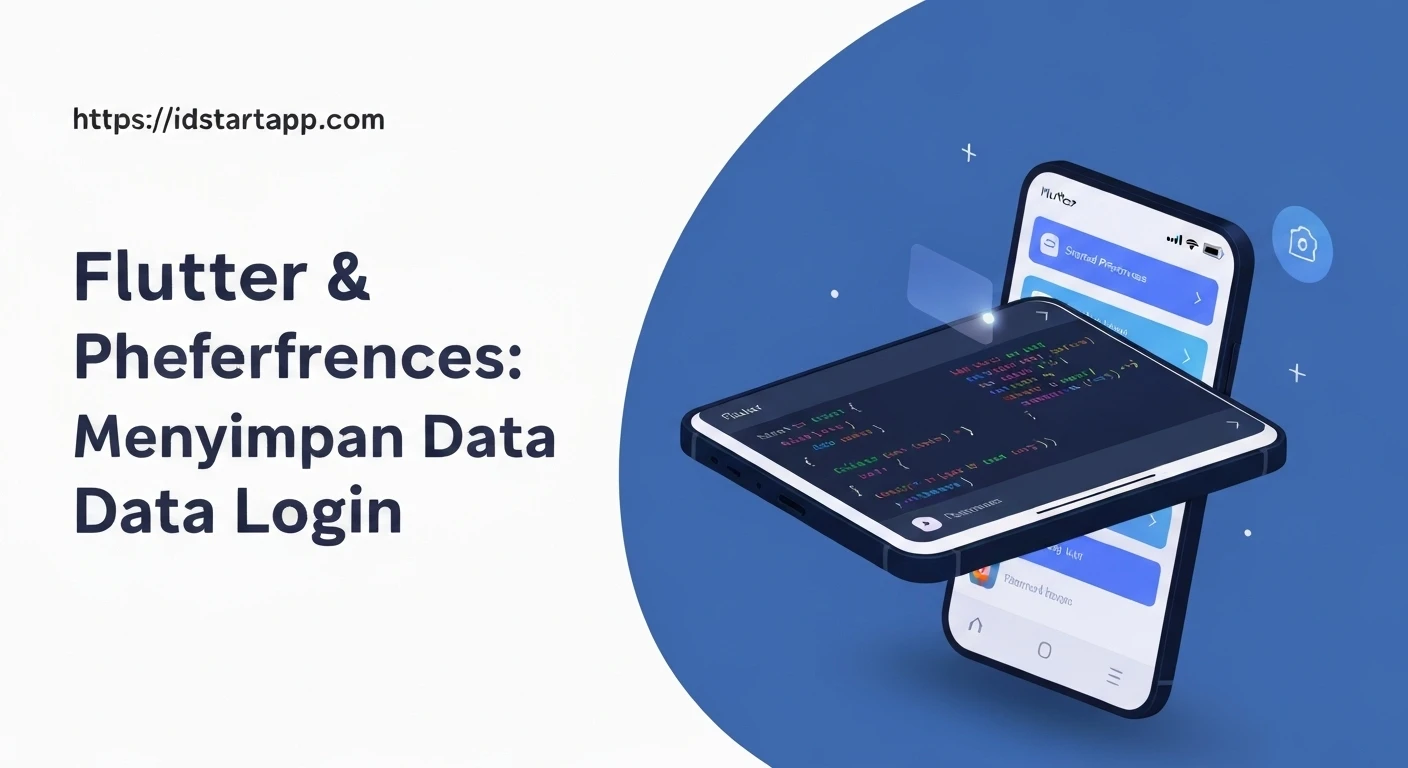
In the realm of mobile application development, creating a seamless user experience often involves persisting data locally on the device. For Flutter applications, this necessity ranges from storing user preferences to maintaining login sessions. This article delves into how to effectively use shared_preferences in Flutter to store and manage login-related data, ensuring a smooth and persistent user experience.
Understanding Shared Preferences
shared_preferences is a Flutter plugin that wraps platform-specific persistent storage for simple data. On Android, it uses SharedPreferences, and on iOS, it uses NSUserDefaults. It's ideal for storing small amounts of key-value data such as user settings, app configurations, and in our case, login status or user session information.
It's crucial to understand that shared_preferences stores data in plain text, making it unsuitable for highly sensitive information like passwords or financial details. For such data, more secure alternatives like flutter_secure_storage should be considered.
Getting Started: Installation
To begin, you need to add the shared_preferences package to your Flutter project. Open your pubspec.yaml file and add the dependency under dependencies:
dependencies:
  flutter:
    sdk: flutter
  shared_preferences: ^2.2.2 # Use the latest version
After adding the dependency, run flutter pub get in your terminal to fetch the package.
Saving Login Data
Once the package is installed, you can start saving data. The SharedPreferences instance provides various methods to store different data types, such as setString, setBool, setInt, setDouble, and setStringList. For login data, we typically use setString for user IDs or tokens and setBool for login status.
Here's how you can save a user's login status and a username:
import 'package:shared_preferences/shared_preferences.dart';

class AuthService {
  static const String _isLoggedInKey = 'isLoggedIn';
  static const String _usernameKey = 'username';
  static const String _tokenKey = 'authToken';

  // Save login status and user details
  static Future<void> setLoginStatus({
    required bool isLoggedIn,
    String? username,
    String? token,
  }) async {
    final SharedPreferences prefs = await SharedPreferences.getInstance();
    await prefs.setBool(_isLoggedInKey, isLoggedIn);
    if (username != null) {
      await prefs.setString(_usernameKey, username);
    }
    if (token != null) {
      await prefs.setString(_tokenKey, token);
    }
    print('Login status saved: isLoggedIn=$isLoggedIn, username=$username');
  }
}
In a real-world scenario, after a successful API login, you would call AuthService.setLoginStatus(isLoggedIn: true, username: 'john_doe', token: 'your_auth_token').
Retrieving Login Data
Retrieving data is just as straightforward. You use the corresponding get methods (e.g., getBool, getString) with the same keys used for saving. It's good practice to provide default values or handle nulls, as the data might not exist if it hasn't been saved yet.
import 'package:shared_preferences/shared_preferences.dart';

class AuthService {
  static const String _isLoggedInKey = 'isLoggedIn';
  static const String _usernameKey = 'username';
  static const String _tokenKey = 'authToken';

  // ... (setLoginStatus method from above)

  // Retrieve login status
  static Future<bool> getLoginStatus() async {
    final SharedPreferences prefs = await SharedPreferences.getInstance();
    return prefs.getBool(_isLoggedInKey) ?? false; // Default to false if not found
  }

  // Retrieve username
  static Future<String?> getUsername() async {
    final SharedPreferences prefs = await SharedPreferences.getInstance();
    return prefs.getString(_usernameKey);
  }

  // Retrieve authentication token
  static Future<String?> getAuthToken() async {
    final SharedPreferences prefs = await SharedPreferences.getInstance();
    return prefs.getString(_tokenKey);
  }
}
You can then use these methods to check if a user is already logged in when the app starts:
Future<void> checkUserLoggedIn() async {
  bool isLoggedIn = await AuthService.getLoginStatus();
  if (isLoggedIn) {
    String? username = await AuthService.getUsername();
    print('User $username is logged in.');
    // Navigate to home screen
  } else {
    print('User is not logged in.');
    // Navigate to login screen
  }
}
Removing Login Data (Logout)
When a user logs out, it's essential to clear their session data from shared_preferences. You can remove specific keys using remove() or clear all data stored by your app using clear().
import 'package:shared_preferences/shared_preferences.dart';

class AuthService {
  static const String _isLoggedInKey = 'isLoggedIn';
  static const String _usernameKey = 'username';
  static const String _tokenKey = 'authToken';

  // ... (other methods from above)

  // Clear all login-related data
  static Future<void> logout() async {
    final SharedPreferences prefs = await SharedPreferences.getInstance();
    await prefs.remove(_isLoggedInKey);
    await prefs.remove(_usernameKey);
    await prefs.remove(_tokenKey);
    print('User logged out. Login data cleared.');
  }
}
Calling AuthService.logout() will effectively clear the user's session, requiring them to log in again next time they use the app.
Example: A Simple Login Screen Flow
Let's put it all together in a simplified Flutter widget to demonstrate the flow:
import 'package:flutter/material.dart';
import 'package:shared_preferences/shared_preferences.dart';

// Assuming AuthService from above is defined in a separate file or directly here.
// For this example, we'll put simplified methods directly into the widget for brevity.

class SimpleLoginScreen extends StatefulWidget {
  const SimpleLoginScreen({super.key});

  @override
  State<SimpleLoginScreen> createState() => _SimpleLoginScreenState();
}

class _SimpleLoginScreenState extends State<SimpleLoginScreen> {
  bool _isLoggedIn = false;
  String? _username;
  final TextEditingController _usernameController = TextEditingController();
  final TextEditingController _passwordController = TextEditingController(); // Not stored in SP

  @override
  void initState() {
    super.initState();
    _checkLoginStatus();
  }

  Future<void> _checkLoginStatus() async {
    final SharedPreferences prefs = await SharedPreferences.getInstance();
    setState(() {
      _isLoggedIn = prefs.getBool('isLoggedIn') ?? false;
      _username = prefs.getString('username');
    });
  }

  Future<void> _login() async {
    // Simulate API call for login
    if (_usernameController.text == 'test' && _passwordController.text == 'password') {
      final SharedPreferences prefs = await SharedPreferences.getInstance();
      await prefs.setBool('isLoggedIn', true);
      await prefs.setString('username', _usernameController.text);

      setState(() {
        _isLoggedIn = true;
        _username = _usernameController.text;
      });
      print('Logged in successfully!');
    } else {
      print('Invalid credentials.');
    }
  }

  Future<void> _logout() async {
    final SharedPreferences prefs = await SharedPreferences.getInstance();
    await prefs.remove('isLoggedIn');
    await prefs.remove('username');

    setState(() {
      _isLoggedIn = false;
      _username = null;
    });
    print('Logged out.');
  }

  @override
  Widget build(BuildContext context) {
    return Scaffold(
      appBar: AppBar(title: const Text('Flutter Login Demo')),
      body: Center(
        child: _isLoggedIn
            ? Column(
                mainAxisAlignment: MainAxisAlignment.center,
                children: [
                  Text('Welcome, $_username!'),
                  ElevatedButton(
                    onPressed: _logout,
                    child: const Text('Logout'),
                  ),
                ],
              )
            : Padding(
                padding: const EdgeInsets.all(16.0),
                child: Column(
                  mainAxisAlignment: MainAxisAlignment.center,
                  children: [
                    TextField(
                      controller: _usernameController,
                      decoration: const InputDecoration(labelText: 'Username'),
                    ),
                    const SizedBox(height: 10),
                    TextField(
                      controller: _passwordController,
                      obscureText: true,
                      decoration: const InputDecoration(labelText: 'Password'),
                    ),
                    const SizedBox(height: 20),
                    ElevatedButton(
                      onPressed: _login,
                      child: const Text('Login'),
                    ),
                  ],
                ),
              ),
      ),
    );
  }
}

void main() {
  runApp(const MyApp());
}

class MyApp extends StatelessWidget {
  const MyApp({super.key});

  @override
  Widget build(BuildContext context) {
    return MaterialApp(
      title: 'Login Demo',
      theme: ThemeData(primarySwatch: Colors.blue),
      home: const SimpleLoginScreen(),
    );
  }
}
Best Practices and Considerations
- Security: As reiterated,
shared_preferencesis not for sensitive data. For authentication tokens or other secrets, useflutter_secure_storage. - Asynchronous Nature: All operations with
SharedPreferencesare asynchronous, returningFuture<bool>orFuture<void>. Always useawaitor handle futures correctly. - Key Management: Use constants for your keys to avoid typos and make your code more maintainable.
- Error Handling: While
shared_preferencesis generally robust, consider adding basic try-catch blocks for critical operations if your app relies heavily on it. - Data Types: Stick to the supported primitive data types and
StringList. For complex objects, you'll need to serialize them to JSON strings before storing and deserialize them upon retrieval.
Conclusion
shared_preferences is a powerful and easy-to-use plugin for lightweight, persistent data storage in Flutter applications. It's an excellent choice for managing login states, user preferences, and other simple key-value pairs that enhance the user experience by maintaining application state across sessions. By understanding its capabilities and limitations, developers can effectively integrate it into their Flutter projects to build robust and user-friendly mobile applications.