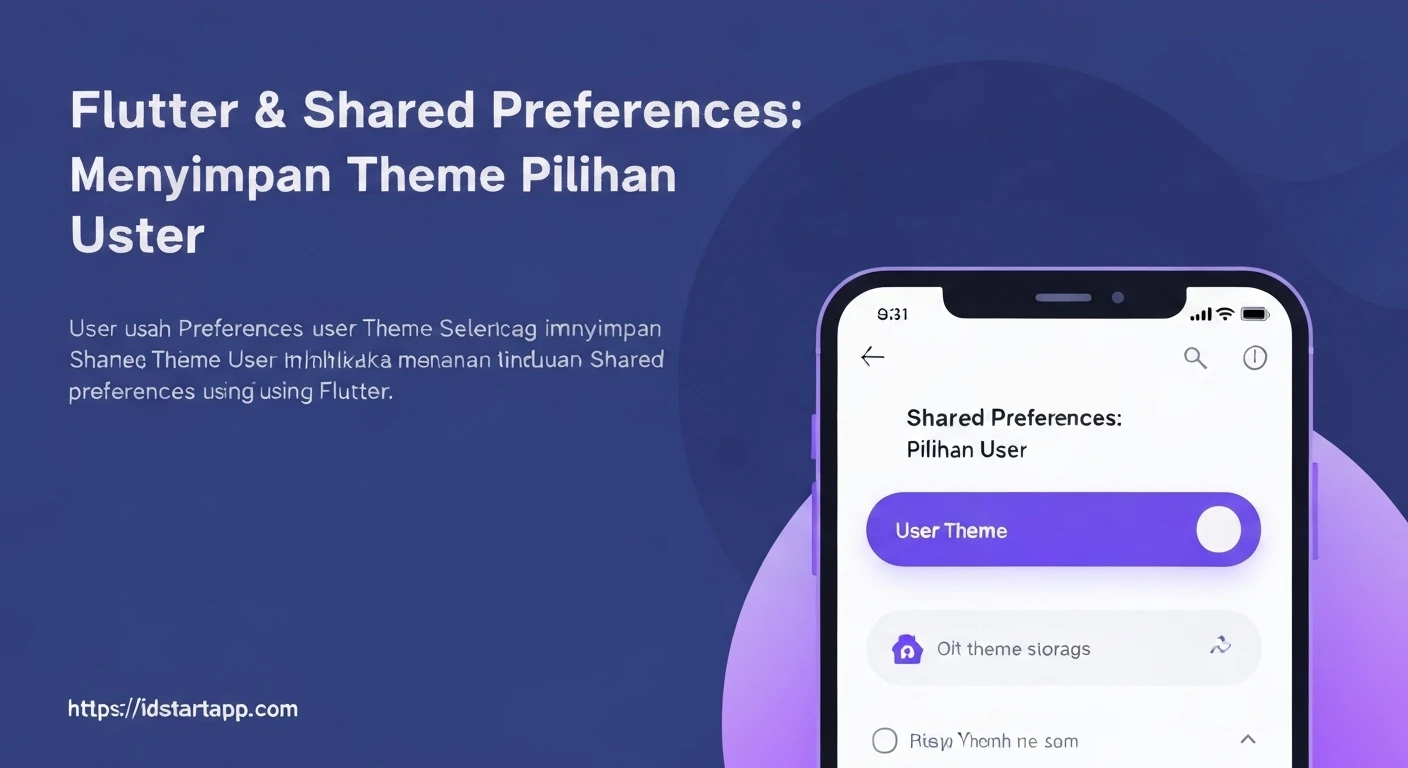

Flutter & Shared Preferences: Persisting User's Theme Choice
A crucial aspect of crafting user-friendly mobile applications is personalization. Allowing users to choose their preferred theme (e.g., light or dark mode) significantly enhances their experience. However, this choice must persist across app sessions. If a user has to re-select their theme every time they open the app, it quickly becomes frustrating. This article will guide you through implementing theme persistence in your Flutter application using shared_preferences.
What is shared_preferences?
shared_preferences is a Flutter plugin that wraps platform-specific persistent storage for simple data. On iOS, it uses NSUserDefaults; on Android, it uses SharedPreferences. It's ideal for storing small amounts of data like user settings, preferences, and flags, making it perfect for saving a user's theme choice.
Setting Up Your Project
First, you need to add the shared_preferences dependency to your pubspec.yaml file. Open your pubspec.yaml and add the following under dependencies::
dependencies:
  flutter:
    sdk: flutter
  shared_preferences: ^2.2.0 # Use the latest version
  provider: ^6.0.5 # For state management, recommended
After adding the dependency, run flutter pub get in your terminal to fetch the package.
Defining Theme Logic and Service
To manage the theme state and interact with shared_preferences, we'll create a dedicated service class. We'll also use provider for state management to easily notify widgets about theme changes.
1. ThemeMode Enum
We'll define an enum to represent our available theme modes. We can also include a System option if we want the app to follow the device's theme settings.
enum ThemeModeOption {
  light,
  dark,
  system,
}

extension ThemeModeExtension on ThemeModeOption {
  ThemeMode toThemeMode() {
    switch (this) {
      case ThemeModeOption.light:
        return ThemeMode.light;
      case ThemeModeOption.dark:
        return ThemeMode.dark;
      case ThemeModeOption.system:
        return ThemeMode.system;
    }
  }
}
2. The ThemeService Class
This class will extend ChangeNotifier and handle loading, saving, and managing the current theme mode.
import 'package:flutter/material.dart';
import 'package:shared_preferences/shared_preferences.dart';

// (Place the ThemeModeOption enum here as well)
enum ThemeModeOption {
  light,
  dark,
  system,
}

extension ThemeModeExtension on ThemeModeOption {
  ThemeMode toThemeMode() {
    switch (this) {
      case ThemeModeOption.light:
        return ThemeMode.light;
      case ThemeModeOption.dark:
        return ThemeMode.dark;
      case ThemeModeOption.system:
        return ThemeMode.system;
    }
  }
}

class ThemeService extends ChangeNotifier {
  static const String _themeKey = 'user_theme_mode';
  ThemeModeOption _currentThemeMode = ThemeModeOption.system; // Default theme

  ThemeModeOption get currentThemeMode => _currentThemeMode;

  ThemeService() {
    _loadThemePreference();
  }

  // Loads the saved theme preference from SharedPreferences
  Future<void> _loadThemePreference() async {
    final prefs = await SharedPreferences.getInstance();
    final String? themeModeString = prefs.getString(_themeKey);
    if (themeModeString != null) {
      _currentThemeMode = ThemeModeOption.values.firstWhere(
        (e) => e.toString() == 'ThemeModeOption.$themeModeString',
        orElse: () => ThemeModeOption.system, // Fallback to system if not found
      );
    }
    notifyListeners(); // Notify widgets after loading
  }

  // Saves the selected theme preference to SharedPreferences
  Future<void> _saveThemePreference(ThemeModeOption mode) async {
    final prefs = await SharedPreferences.getInstance();
    await prefs.setString(_themeKey, mode.name);
  }

  // Changes the current theme mode and persists it
  void setThemeMode(ThemeModeOption mode) {
    if (_currentThemeMode != mode) {
      _currentThemeMode = mode;
      _saveThemePreference(mode); // Save the new preference
      notifyListeners(); // Notify widgets of the change
    }
  }
}
Integrating with Your Flutter App
Now, let's integrate this ThemeService into your Flutter application using Provider.
1. Wrap Your App with ChangeNotifierProvider
In your main.dart file, wrap your MaterialApp with a ChangeNotifierProvider to make the ThemeService available throughout your widget tree.
import 'package:flutter/material.dart';
import 'package:provider/provider.dart';
import 'theme_service.dart'; // Assuming theme_service.dart is in the same directory

void main() {
  runApp(
    ChangeNotifierProvider(
      create: (context) => ThemeService(),
      child: MyApp(),
    ),
  );
}

class MyApp extends StatelessWidget {
  @override
  Widget build(BuildContext context) {
    return Consumer<ThemeService>(
      builder: (context, themeService, child) {
        return MaterialApp(
          title: 'Theme Persistence Demo',
          theme: ThemeData.light(),
          darkTheme: ThemeData.dark(),
          themeMode: themeService.currentThemeMode.toThemeMode(),
          home: ThemeSelectionScreen(),
        );
      },
    );
  }
}
2. Create a UI to Change the Theme
Finally, create a screen or a widget where the user can select their preferred theme. This widget will interact with the ThemeService to update and save the theme.
import 'package:flutter/material.dart';
import 'package:provider/provider.dart';
import 'theme_service.dart'; // Assuming theme_service.dart is in the same directory

class ThemeSelectionScreen extends StatelessWidget {
  @override
  Widget build(BuildContext context) {
    return Scaffold(
      appBar: AppBar(
        title: Text('Theme Settings'),
      ),
      body: Center(
        child: Column(
          mainAxisAlignment: MainAxisAlignment.center,
          children: <Widget>[
            Text(
              'Choose Your Theme:',
              style: Theme.of(context).textTheme.headlineSmall,
            ),
            SizedBox(height: 20),
            Consumer<ThemeService>(
              builder: (context, themeService, child) {
                return Column(
                  children: ThemeModeOption.values.map((ThemeModeOption mode) {
                    return RadioListTile<ThemeModeOption>(
                      title: Text(mode.name.toUpperCase()),
                      value: mode,
                      groupValue: themeService.currentThemeMode,
                      onChanged: (ThemeModeOption? newMode) {
                        if (newMode != null) {
                          themeService.setThemeMode(newMode);
                        }
                      },
                    );
                  }).toList(),
                );
              },
            ),
            SizedBox(height: 40),
            Text(
              'Hello Flutter!',
              style: Theme.of(context).textTheme.displaySmall,
            ),
            Text(
              'This text will change based on your theme choice.',
              style: Theme.of(context).textTheme.bodyLarge,
            ),
          ],
        ),
      ),
    );
  }
}
Complete Example (`main.dart` and `theme_service.dart`)
For clarity, here's how you might structure your files:
`theme_service.dart`
import 'package:flutter/material.dart';
import 'package:shared_preferences/shared_preferences.dart';

enum ThemeModeOption {
  light,
  dark,
  system,
}

extension ThemeModeExtension on ThemeModeOption {
  ThemeMode toThemeMode() {
    switch (this) {
      case ThemeModeOption.light:
        return ThemeMode.light;
      case ThemeModeOption.dark:
        return ThemeMode.dark;
      case ThemeModeOption.system:
        return ThemeMode.system;
    }
  }
}

class ThemeService extends ChangeNotifier {
  static const String _themeKey = 'user_theme_mode';
  ThemeModeOption _currentThemeMode = ThemeModeOption.system;

  ThemeModeOption get currentThemeMode => _currentThemeMode;

  ThemeService() {
    _loadThemePreference();
  }

  Future<void> _loadThemePreference() async {
    final prefs = await SharedPreferences.getInstance();
    final String? themeModeString = prefs.getString(_themeKey);
    if (themeModeString != null) {
      _currentThemeMode = ThemeModeOption.values.firstWhere(
        (e) => e.toString() == 'ThemeModeOption.$themeModeString',
        orElse: () => ThemeModeOption.system,
      );
    }
    notifyListeners();
  }

  Future<void> _saveThemePreference(ThemeModeOption mode) async {
    final prefs = await SharedPreferences.getInstance();
    await prefs.setString(_themeKey, mode.name);
  }

  void setThemeMode(ThemeModeOption mode) {
    if (_currentThemeMode != mode) {
      _currentThemeMode = mode;
      _saveThemePreference(mode);
      notifyListeners();
    }
  }
}
`main.dart`
import 'package:flutter/material.dart';
import 'package:provider/provider.dart';
import 'package:your_app_name/theme_service.dart'; // Adjust import path as needed

void main() {
  runApp(
    ChangeNotifierProvider(
      create: (context) => ThemeService(),
      child: MyApp(),
    ),
  );
}

class MyApp extends StatelessWidget {
  @override
  Widget build(BuildContext context) {
    return Consumer<ThemeService>(
      builder: (context, themeService, child) {
        return MaterialApp(
          title: 'Theme Persistence Demo',
          theme: ThemeData.light(),
          darkTheme: ThemeData.dark(),
          themeMode: themeService.currentThemeMode.toThemeMode(),
          home: ThemeSelectionScreen(),
        );
      },
    );
  }
}

class ThemeSelectionScreen extends StatelessWidget {
  @override
  Widget build(BuildContext context) {
    return Scaffold(
      appBar: AppBar(
        title: Text('Theme Settings'),
      ),
      body: Center(
        child: Column(
          mainAxisAlignment: MainAxisAlignment.center,
          children: <Widget>[
            Text(
              'Choose Your Theme:',
              style: Theme.of(context).textTheme.headlineSmall,
            ),
            SizedBox(height: 20),
            Consumer<ThemeService>(
              builder: (context, themeService, child) {
                return Column(
                  children: ThemeModeOption.values.map((ThemeModeOption mode) {
                    return RadioListTile<ThemeModeOption>(
                      title: Text(mode.name.toUpperCase()),
                      value: mode,
                      groupValue: themeService.currentThemeMode,
                      onChanged: (ThemeModeOption? newMode) {
                        if (newMode != null) {
                          themeService.setThemeMode(newMode);
                        }
                      },
                    );
                  }).toList(),
                );
              },
            ),
            SizedBox(height: 40),
            Text(
              'Hello Flutter!',
              style: Theme.of(context).textTheme.displaySmall,
            ),
            Text(
              'This text will change based on your theme choice.',
              style: Theme.of(context).textTheme.bodyLarge,
            ),
          ],
        ),
      ),
    );
  }
}
Conclusion
By leveraging shared_preferences and a simple state management solution like Provider, you can easily implement theme persistence in your Flutter applications. This approach ensures that your users' theme preferences are remembered across app launches, contributing to a more seamless and personalized user experience. Remember to always handle potential null values when retrieving data from shared_preferences and provide sensible default values.