
Flutter & REST API: Uploading Files with Multipart
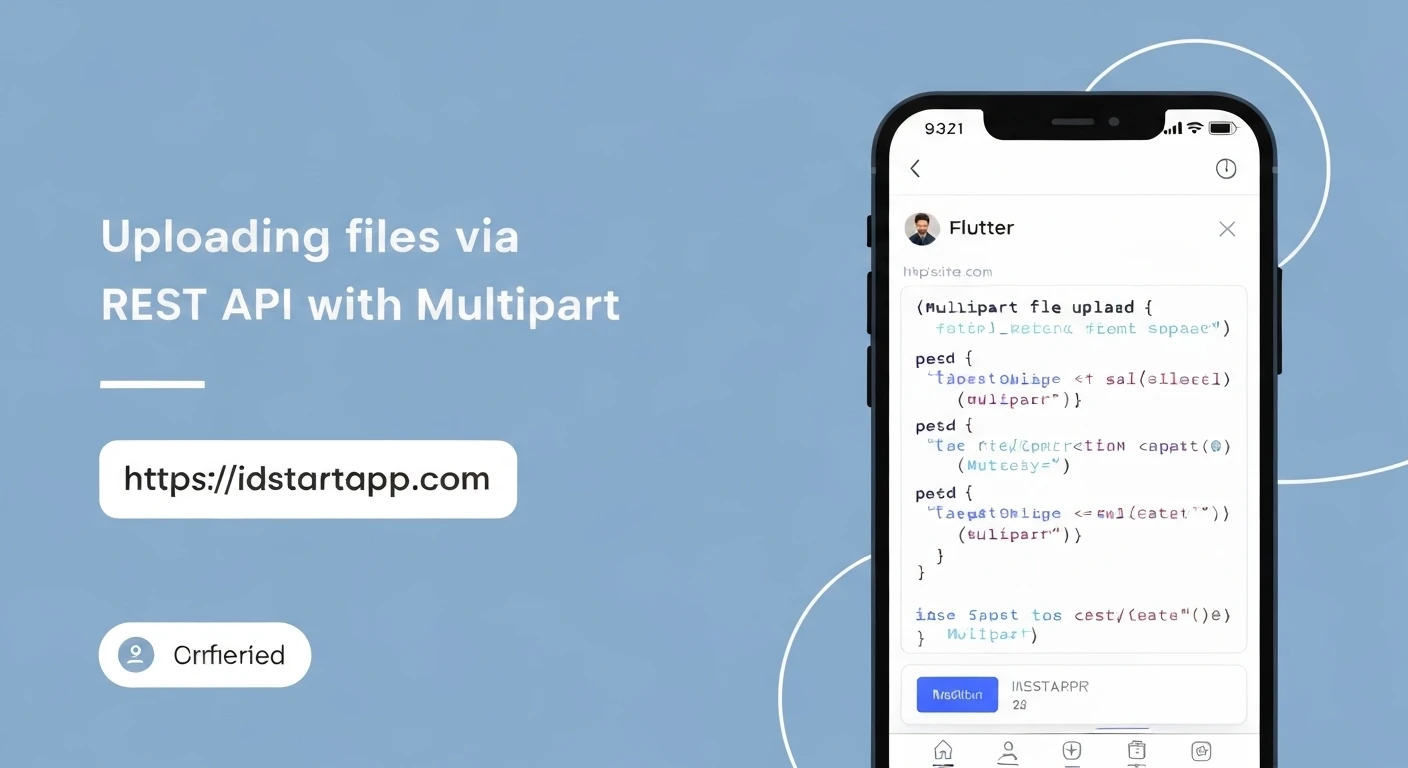
File uploads are a fundamental feature in many modern applications, from user profile pictures and document sharing to multimedia content. When building mobile applications with Flutter that interact with RESTful APIs, handling file uploads efficiently and reliably is crucial. This article delves into the process of uploading files, specifically using multipart/form-data, from a Flutter application to a backend REST API.
Understanding Multipart/Form-Data
When you submit a standard HTML form that includes files (e.g., an <input type="file">), browsers typically encode the data using the multipart/form-data content type. This encoding allows a single HTTP request to carry multiple distinct parts of data, each with its own headers. For file uploads, this means the request can include both text fields (like user ID, description) and the binary file content itself, separated by a unique boundary string.
Using multipart/form-data is essential for file uploads because:
- It efficiently transmits binary data alongside other form fields.
- It's a widely accepted standard that most backend frameworks are designed to parse.
Prerequisites
Before diving into the code, ensure you have a Flutter project set up. For handling HTTP requests, we'll use the popular http package, and for picking images from the device gallery or camera, we'll use the image_picker package.
1. Add Dependencies
Open your pubspec.yaml file and add the following dependencies:
dependencies:
  flutter:
    sdk: flutter
  http: ^1.1.0 # Use the latest stable version
  image_picker: ^1.0.4 # Use the latest stable version
After adding, run flutter pub get to fetch the packages.
2. Platform-Specific Setup for image_picker
The image_picker package requires platform-specific permissions. Refer to its official documentation for detailed setup, but generally:
- Android: No specific permissions are usually needed beyond what
image_pickeradds automatically, but ensure your app targets Android SDK 33 or higher for latest permission models. - iOS: Add the following keys to your
Info.plistfile:<key>NSPhotoLibraryUsageDescription</key> <string>This app needs access to your photo library to pick images for upload.</string> <key>NSCameraUsageDescription</key> <string>This app needs access to your camera to take photos for upload.</string>
Implementing the File Picking Logic
First, let's create a simple function to allow the user to pick an image from their device.
import 'dart:io';
import 'package:image_picker/image_picker.dart';

/// Picks an image from the gallery using image_picker.
/// Returns a File object if an image is selected, otherwise null.
Future<File?> pickImageFromGallery() async {
  final picker = ImagePicker();
  final pickedFile = await picker.pickImage(source: ImageSource.gallery);

  if (pickedFile != null) {
    return File(pickedFile.path);
  }
  return null;
}
Implementing the Multipart Upload Logic
Now, let's create the core function responsible for constructing and sending the multipart request.
import 'dart:io';
import 'package:http/http.dart' as http;

/// Uploads a file to a specified URL using multipart/form-data.
///
/// [file]: The File object to be uploaded.
/// [uploadUrl]: The URL of your backend API endpoint for file uploads.
/// [fieldName]: The name of the form field that your backend expects for the file (e.g., 'image', 'file').
/// [additionalFields]: An optional map of additional text fields to send along with the file.
///
/// Returns a Future<http.StreamedResponse> which contains the server's response.
Future<http.StreamedResponse> uploadFile(
  File file,
  String uploadUrl, {
  String fieldName = 'file', // Default field name
  Map<String, String>? additionalFields,
}) async {
  // Create a multipart request
  var request = http.MultipartRequest('POST', Uri.parse(uploadUrl));

  // Add the file to the request
  request.files.add(
    await http.MultipartFile.fromPath(
      fieldName, // The field name for the file on the server
      file.path,
      filename: file.path.split('/').last, // Optional: send the original file name
    ),
  );

  // Add any additional text fields
  if (additionalFields != null) {
    request.fields.addAll(additionalFields);
  }

  // Send the request
  var response = await request.send();
  return response;
}
Explanation of the upload logic:
http.MultipartRequest('POST', Uri.parse(uploadUrl)): Initializes a new POST request designed for multipart data.http.MultipartFile.fromPath(...): Creates a file part from aFileobject's path.- The first argument (
fieldName) is critical: it must match the name your backend API expects for the file input (e.g., if your backend expects the file under the key "image", this should be "image"). file.pathprovides the path to the local file.filename: file.path.split('/').lastis optional but good practice to suggest the original filename to the server.
- The first argument (
request.fields.addAll(additionalFields): Allows you to include other non-file data (e.g., a user ID, a description, tags) as standard form fields.request.send(): Sends the multipart request to the server. This returns aStreamedResponsebecause the body might be streamed.
Integrating into a Flutter Widget
Now, let's put it all together in a simple Flutter UI to pick a file, display it, and then upload it.
import 'package:flutter/material.dart';
import 'dart:io';
import 'package:http/http.dart' as http; // For http.Response
import 'package:your_app_name/utils/file_picker_helper.dart'; // Assume the pickImageFromGallery is here
import 'package:your_app_name/services/file_upload_service.dart'; // Assume the uploadFile is here

class FileUploadScreen extends StatefulWidget {
  @override
  _FileUploadScreenState createState() => _FileUploadScreenState();
}

class _FileUploadScreenState extends State<FileUploadScreen> {
  File? _selectedFile;
  bool _isLoading = false;
  String? _uploadStatusMessage;

  // Replace with your actual backend upload URL
  static const String _backendUploadUrl = 'https://your-api-url.com/upload';

  Future<void> _pickAndUploadImage() async {
    setState(() {
      _uploadStatusMessage = null;
      _selectedFile = null;
    });

    File? pickedFile = await pickImageFromGallery();

    if (pickedFile != null) {
      setState(() {
        _selectedFile = pickedFile;
      });
      await _executeUpload(pickedFile);
    } else {
      setState(() {
        _uploadStatusMessage = 'No file selected.';
      });
    }
  }

  Future<void> _executeUpload(File file) async {
    setState(() {
      _isLoading = true;
      _uploadStatusMessage = 'Uploading...';
    });

    try {
      // Define additional fields if needed
      Map<String, String> fields = {
        'description': 'Image uploaded from Flutter app',
        'userId': '12345',
      };

      http.StreamedResponse streamedResponse = await uploadFile(
        file,
        _backendUploadUrl,
        fieldName: 'image', // Ensure this matches your backend's expected field name
        additionalFields: fields,
      );

      // Convert the streamed response to a regular HTTP response for easier handling
      http.Response response = await http.Response.fromStream(streamedResponse);

      if (response.statusCode == 200 || response.statusCode == 201) {
        setState(() {
          _uploadStatusMessage = 'Upload successful! Server response: ${response.body}';
        });
        print('Upload successful: ${response.body}');
      } else {
        setState(() {
          _uploadStatusMessage = 'Upload failed: ${response.statusCode} - ${response.body}';
        });
        print('Upload failed: ${response.statusCode} - ${response.body}');
      }
    } catch (e) {
      setState(() {
        _uploadStatusMessage = 'An error occurred during upload: $e';
      });
      print('Error during upload: $e');
    } finally {
      setState(() {
        _isLoading = false;
      });
    }
  }

  @override
  Widget build(BuildContext context) {
    return Scaffold(
      appBar: AppBar(
        title: Text('File Upload Demo'),
      ),
      body: Center(
        child: SingleChildScrollView(
          padding: const EdgeInsets.all(16.0),
          child: Column(
            mainAxisAlignment: MainAxisAlignment.center,
            children: <Widget>[
              if (_selectedFile != null)
                Container(
                  constraints: BoxConstraints(maxHeight: 200, maxWidth: 200),
                  child: Image.file(_selectedFile!, fit: BoxFit.cover),
                )
              else
                Container(
                  height: 150,
                  width: 150,
                  color: Colors.grey[300],
                  child: Icon(Icons.image, size: 50, color: Colors.grey[600]),
                ),
              SizedBox(height: 20),
              ElevatedButton(
                onPressed: _isLoading ? null : _pickAndUploadImage,
                child: _isLoading
                    ? CircularProgressIndicator(color: Colors.white)
                    : Text('Pick Image & Upload'),
              ),
              SizedBox(height: 20),
              if (_uploadStatusMessage != null)
                Padding(
                  padding: const EdgeInsets.symmetric(horizontal: 16.0),
                  child: Text(
                    _uploadStatusMessage!,
                    textAlign: TextAlign.center,
                    style: TextStyle(
                      color: _uploadStatusMessage!.startsWith('Upload successful')
                          ? Colors.green
                          : Colors.red,
                    ),
                  ),
                ),
            ],
          ),
        ),
      ),
    );
  }
}
Backend Considerations (Briefly)
On the backend, your REST API needs to be configured to handle multipart/form-data. Most modern frameworks have built-in support or popular libraries for this:
- Node.js: Use libraries like
multer(for Express.js) orformidable. - Python: Flask uses
request.filesandrequest.form; Django usesrequest.FILESandrequest.POST. - PHP: Files are accessible via the
$_FILESsuperglobal. - Java (Spring Boot): Use
@RequestPartfor files and@RequestParamfor other form fields.
Ensure the fieldName specified in your Flutter app (e.g., 'image' in the example) matches what your backend expects.
Error Handling and Best Practices
- Network Errors: Implement robust error handling for network connectivity issues, timeouts, and server unavailability. The
try-catchblock arounduploadFileis a good start. - Loading States: Provide clear visual feedback to the user when an upload is in progress (e.g., using a
CircularProgressIndicatorand disabling the upload button). - File Size Limits: Be mindful of file size limits on both the client (e.g., before picking, if necessary) and especially on the server. Large files can lead to timeouts or resource exhaustion.
- Security:
- Always upload to secure (HTTPS) endpoints.
- On the server, validate file types, sizes, and scan for malicious content.
- Store uploaded files securely and apply proper access controls.
- Progress Indicators: For very large files, consider using the
http.MultipartRequest.sendBytesor a custom stream to get real-time upload progress, if your backend also supports it. The `http` package's `StreamedResponse` can be used to monitor download progress, but upload progress monitoring usually requires more fine-grained control or a different library like `dio`. - Retries: For flaky networks, consider implementing a retry mechanism for failed uploads.
Conclusion
Uploading files with multipart/form-data is a standard and effective way to send binary data along with other form fields from your Flutter application to a REST API. By leveraging the http package and image_picker, you can build a robust file upload feature that enhances the functionality of your mobile applications. Always remember to consider backend requirements, implement thorough error handling, and adhere to security best practices for a seamless and reliable user experience.