
Flutter Responsive Layout for All Screen Sizes
In today's multi-device world, creating applications that look and function flawlessly across various screen sizes is no longer a luxury, but a necessity. Flutter, with its declarative UI and powerful layout engine, provides robust tools to build truly responsive user interfaces. This article explores the core concepts and widgets for achieving adaptive layouts in your Flutter applications, ensuring a consistent and optimal user experience on any device, from smartphones to tablets and desktops.
Understanding the Basics of Flutter's Layout System
Flutter's layout system relies on a constraint-based model where widgets are given constraints by their parent and then pass their own constraints to their children. To build responsive UIs, it's crucial to understand how to query these constraints and react to changes in the available space.
MediaQuery: Accessing Device Information
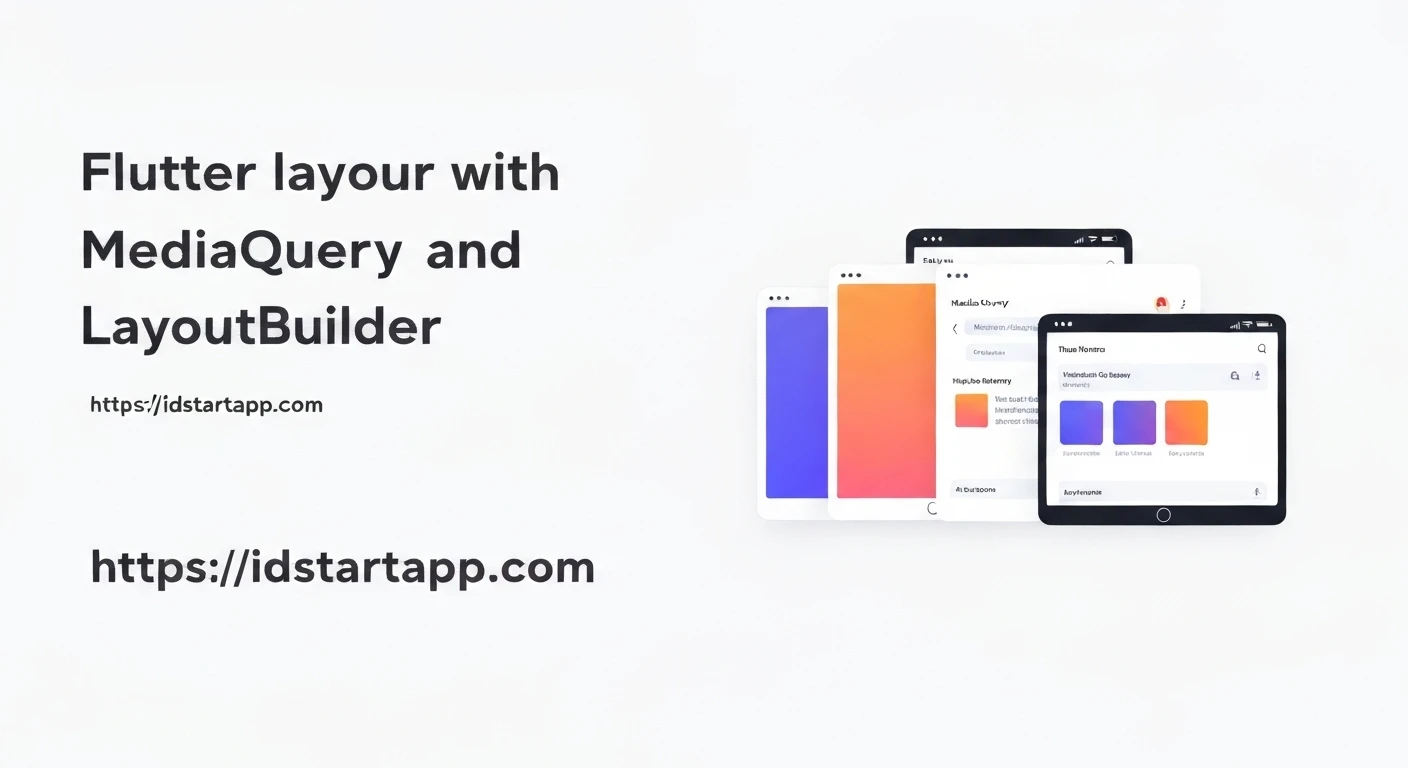
The MediaQuery widget provides a high-level way to query information about the current media, such as screen size, pixel density, orientation, and more. It's often the first step in making global layout decisions.
import 'package:flutter/material.dart';

class MyResponsivePage extends StatelessWidget {
  @override
  Widget build(BuildContext context) {
    final mediaQueryData = MediaQuery.of(context);
    final screenWidth = mediaQueryData.size.width;
    final screenHeight = mediaQueryData.size.height;
    final isPortrait = mediaQueryData.orientation == Orientation.portrait;

    return Scaffold(
      appBar: AppBar(title: Text('Responsive Demo')),
      body: Center(
        child: Column(
          mainAxisAlignment: MainAxisAlignment.center,
          children: [
            Text('Screen Width: ${screenWidth.toStringAsFixed(2)}'),
            Text('Screen Height: ${screenHeight.toStringAsFixed(2)}'),
            Text('Orientation: ${isPortrait ? 'Portrait' : 'Landscape'}'),
            SizedBox(height: 20),
            Container(
              width: screenWidth * (isPortrait ? 0.8 : 0.4),
              height: screenHeight * 0.2,
              color: Colors.blue,
              child: Center(
                child: Text(
                  'Adaptive Container',
                  style: TextStyle(color: Colors.white, fontSize: 20),
                ),
              ),
            ),
          ],
        ),
      ),
    );
  }
}
LayoutBuilder: Responding to Parent Constraints
While MediaQuery provides global screen dimensions, LayoutBuilder allows widgets to react to the constraints of their immediate parent. This is invaluable for building widgets that adapt to the specific space they are given, regardless of the overall screen size.
import 'package:flutter/material.dart';

class AdaptiveContainer extends StatelessWidget {
  @override
  Widget build(BuildContext context) {
    return LayoutBuilder(
      builder: (BuildContext context, BoxConstraints constraints) {
        if (constraints.maxWidth > 600) {
          // Wider layout for larger constraints
          return Row(
            children: [
              Expanded(child: Container(color: Colors.red, height: 100)),
              Expanded(child: Container(color: Colors.blue, height: 100)),
            ],
          );
        } else {
          // Narrower layout for smaller constraints
          return Column(
            children: [
              Container(color: Colors.red, width: constraints.maxWidth, height: 50),
              Container(color: Colors.blue, width: constraints.maxWidth, height: 50),
            ],
          );
        }
      },
    );
  }
}
OrientationBuilder: Handling Orientation Changes
For scenarios where the layout needs to specifically change based on the device's orientation (portrait or landscape), OrientationBuilder provides a concise way to achieve this without manually checking MediaQuery.of(context).orientation repeatedly.
import 'package:flutter/material.dart';

class OrientationSpecificLayout extends StatelessWidget {
  @override
  Widget build(BuildContext context) {
    return Scaffold(
      appBar: AppBar(title: Text('Orientation Demo')),
      body: OrientationBuilder(
        builder: (context, orientation) {
          return Center(
            child: GridView.count(
              crossAxisCount: orientation == Orientation.portrait ? 2 : 4,
              children: List.generate(
                8,
                (index) => Card(
                  color: Colors.teal[100 * (index % 9)],
                  child: Center(child: Text('Item $index')),
                ),
              ),
            ),
          );
        },
      ),
    );
  }
}
Key Responsive Widgets and Techniques
Flutter offers a suite of widgets specifically designed to help you construct flexible layouts.
Expanded and Flexible: Distributing Space in Rows and Columns
Used within Row and Column, Expanded and Flexible widgets are fundamental for distributing available space among children. Expanded forces its child to fill the available space along the main axis, while Flexible allows its child to expand or contract to fill the available space, but it won't force it to take up all the space.
Row(
  children: [
    Container(width: 50, height: 50, color: Colors.red),
    Flexible(
      flex: 2, // Takes 2/3 of remaining space
      child: Container(height: 50, color: Colors.green),
    ),
    Expanded( // Takes all remaining space
      child: Container(height: 50, color: Colors.blue),
    ),
  ],
)
Wrap: Flowing Content
The Wrap widget automatically flows its children to the next line or row when there isn't enough space, similar to how text wraps in a paragraph. This is ideal for tag clouds, button groups, or any collection of widgets that should naturally reflow.
Wrap(
  spacing: 8.0, // gap between adjacent chips
  runSpacing: 4.0, // gap between lines
  children: [
    Chip(label: Text('Apple')),
    Chip(label: Text('Banana')),
    Chip(label: Text('Cherry')),
    Chip(label: Text('Date')),
    Chip(label: Text('Elderberry')),
    Chip(label: Text('Fig')),
  ],
)
AspectRatio: Maintaining Proportions
AspectRatio forces its child to have a specific aspect ratio, regardless of the available width. This is useful for images, video players, or any content that needs to maintain its proportions.
AspectRatio(
  aspectRatio: 16 / 9,
  child: Image.network(
    'https://via.placeholder.com/150',
    fit: BoxFit.cover,
  ),
)
FittedBox: Scaling and Positioning a Child
FittedBox scales and positions its child within itself according to a specified fit type. This is powerful for making sure a child widget always fits within its parent boundaries, even if it means scaling it down.
Container(
  width: 100,
  height: 50,
  color: Colors.grey[300],
  child: FittedBox(
    fit: BoxFit.contain, // or BoxFit.fill, BoxFit.scaleDown, etc.
    child: Text('Long Text That Should Fit'),
  ),
)
CustomScrollView, SliverList, SliverGrid: Advanced Scrolling Layouts
For highly customized and performant scrolling layouts, especially those involving variable item sizes or complex header effects, the sliver widgets are essential. They allow you to define how scrollable regions behave and respond to available space.
CustomScrollView(
  slivers: [
    SliverAppBar(
      expandedHeight: 200.0,
      floating: false,
      pinned: true,
      flexibleSpace: FlexibleSpaceBar(
        title: Text('Sliver Layout'),
      ),
    ),
    SliverGrid(
      gridDelegate: SliverGridDelegateWithFixedCrossAxisCount(
        crossAxisCount: 2,
        mainAxisSpacing: 10.0,
        crossAxisSpacing: 10.0,
        childAspectRatio: 4.0,
      ),
      delegate: SliverChildBuilderDelegate(
        (BuildContext context, int index) {
          return Container(
            alignment: Alignment.center,
            color: Colors.teal[100 * (index % 9)],
            child: Text('Grid Item $index'),
          );
        },
        childCount: 20,
      ),
    ),
    SliverList(
      delegate: SliverChildBuilderDelegate(
        (BuildContext context, int index) {
          return Container(
            alignment: Alignment.center,
            color: Colors.blue[100 * (index % 9)],
            height: 100,
            child: Text('List Item $index'),
          );
        },
        childCount: 20,
      ),
    ),
  ],
)
Strategies for Building Responsive UIs
1. Breakpoint System
A common approach is to define breakpoints (specific screen width thresholds) at which your UI layout changes significantly. You can use MediaQuery or LayoutBuilder to check the current width and render different widgets or adjust properties accordingly.
import 'package:flutter/material.dart';

class BreakpointLayout extends StatelessWidget {
  @override
  Widget build(BuildContext context) {
    return Scaffold(
      appBar: AppBar(title: Text('Breakpoint Demo')),
      body: LayoutBuilder(
        builder: (context, constraints) {
          if (constraints.maxWidth > 800) {
            // Desktop/Tablet layout
            return Row(
              children: [
                Container(width: 200, color: Colors.grey[200], child: Text('Sidebar')),
                Expanded(child: GridView.builder(
                  gridDelegate: SliverGridDelegateWithFixedCrossAxisCount(crossAxisCount: 3),
                  itemBuilder: (context, index) => Card(child: Center(child: Text('Item $index'))),
                  itemCount: 9,
                )),
              ],
            );
          } else {
            // Mobile layout
            return ListView.builder(
              itemBuilder: (context, index) => Card(child: Center(child: Text('Mobile Item $index'))),
              itemCount: 9,
            );
          }
        },
      ),
    );
  }
}
2. Adaptive UI Components
Rather than rebuilding entire screens, make individual components adaptive. For instance, a list item might display more details or arrange its content differently based on the width it receives.
3. Relative Sizing
Avoid fixed pixel values as much as possible. Instead, use relative units like percentages of screen width/height (MediaQuery.of(context).size.width * 0.5), fractions (Expanded/Flexible), or intrinsic sizing where widgets naturally determine their size.
4. Platform-Specific Adaptations
Consider platform-specific UI/UX guidelines. Flutter provides Cupertino widgets for iOS-style designs and Material widgets for Android/web/desktop. You can use Theme.of(context).platform or custom checks to render different UI elements based on the target platform.
Best Practices
- Design Mobile-First: Often, it's easier to design for the smallest screen and then scale up.
- Test Thoroughly: Use Flutter DevTools to simulate different screen sizes and orientations during development. Test on a variety of actual devices or emulators.
- Keep it Simple: Start with simpler responsive strategies (like
Expanded/Flexible) before diving into more complex ones (like custom slivers). - Use Constant Aspect Ratios for Media: Images and videos generally look best when their original aspect ratio is preserved.
- Avoid Over-Optimization: While responsiveness is key, don't over-engineer solutions. Sometimes, a simple scrollable view is sufficient.
Conclusion
Building responsive layouts in Flutter is fundamental to delivering high-quality, adaptable applications. By mastering widgets like MediaQuery, LayoutBuilder, Expanded, Flexible, and Wrap, and adopting strategic approaches like breakpoint systems and adaptive components, you can ensure your Flutter applications provide a seamless and engaging experience across the diverse landscape of modern devices. Embrace Flutter's powerful layout engine to create truly universal applications that shine on every screen.