

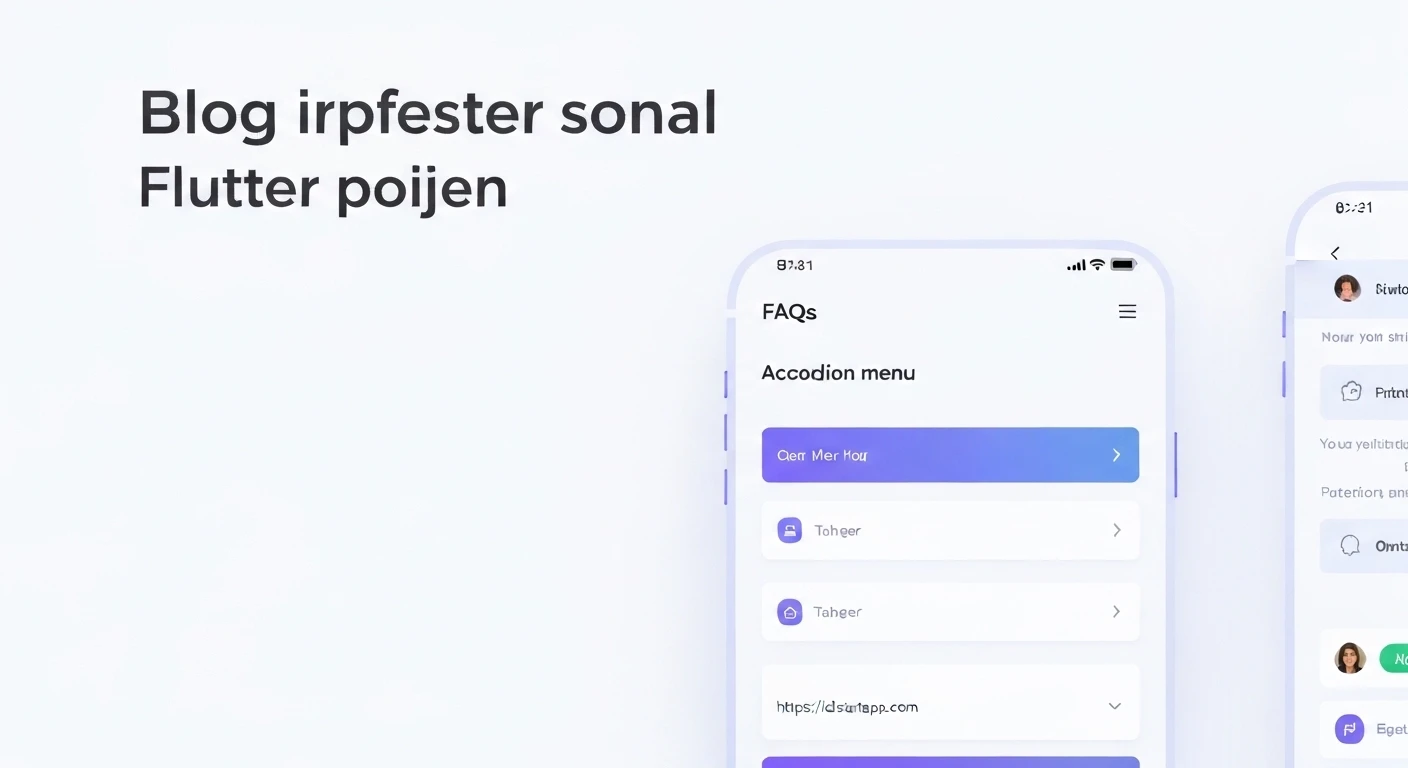

Creating an Accordion Menu Widget for FAQ in Flutter
Accordion menus are a common UI pattern used to display a list of headers that can be expanded or collapsed to reveal associated content. They are particularly effective for FAQ (Frequently Asked Questions) sections, allowing users to quickly scan questions and only expand those they are interested in, thus saving screen space and improving readability.
Why Use an Accordion for FAQs?
- Efficient use of screen space: Keeps your layout clean by hiding content until needed.
- Improved user experience: Reduces visual clutter and makes information easier to digest.
- Easy navigation: Users can quickly find answers to specific questions without scrolling through long pages.
Prerequisites
Before diving into the implementation, ensure you have a basic understanding of Flutter concepts, including widgets, state management, and basic UI layouts.
Step 1: Define the FAQ Data Model
First, let's define a simple data model to represent an individual FAQ item. This will help us structure our data cleanly.
class FAQItem {
  final String question;
  final String answer;
  bool isExpanded;

  FAQItem({required this.question, required this.answer, this.isExpanded = false});
}
Step 2: Create a Single Accordion Item Widget
Next, we'll build a widget that represents a single collapsible FAQ item. This widget will manage its own expansion state. We'll use a StatefulWidget because the isExpanded state needs to change dynamically based on user interaction.
import 'package:flutter/material.dart';

// Assuming FAQItem class is defined as above or imported from another file
// class FAQItem { ... }

class FAQAccordionItem extends StatefulWidget {
  final FAQItem item;
  final ValueChanged onExpansionChanged; // Callback for parent to manage global state

  const FAQAccordionItem({
    Key? key,
    required this.item,
    required this.onExpansionChanged,
  }) : super(key: key);

  @override
  _FAQAccordionItemState createState() => _FAQAccordionItemState();
}

class _FAQAccordionItemState extends State {
  @override
  Widget build(BuildContext context) {
    return Card(
      margin: const EdgeInsets.symmetric(vertical: 8.0, horizontal: 16.0),
      child: Column(
        children: [
          ListTile(
            title: Text(
              widget.item.question,
              style: const TextStyle(fontWeight: FontWeight.bold),
            ),
            trailing: Icon(
              widget.item.isExpanded ? Icons.keyboard_arrow_up : Icons.keyboard_arrow_down,
            ),
            onTap: () {
              setState(() {
                widget.item.isExpanded = !widget.item.isExpanded;
                widget.onExpansionChanged(widget.item.isExpanded);
              });
            },
          ),
          if (widget.item.isExpanded)
            Padding(
              padding: const EdgeInsets.fromLTRB(16.0, 0.0, 16.0, 16.0),
              child: Text(widget.item.answer),
            ),
        ],
      ),
    );
  }
}
Step 3: Integrate Multiple Accordion Items into a FAQ List
Now, let's create a main FAQAccordionPage widget that will hold a list of FAQItems and display them using our FAQAccordionItem widget. This page will manage the global state of which items are expanded. To ensure only one item can be open at a time (a common accordion behavior), we'll implement logic to collapse other items when one is expanded.
import 'package:flutter/material.dart';
// Assuming FAQItem and FAQAccordionItem are in the same project or imported.
// import 'faq_data_model.dart'; // If in a separate file
// import 'faq_accordion_item.dart'; // If in a separate file

class FAQAccordionPage extends StatefulWidget {
  const FAQAccordionPage({Key? key}) : super(key: key);

  @override
  _FAQAccordionPageState createState() => _FAQAccordionPageState();
}

class _FAQAccordionPageState extends State {
  final List _faqItems = [
    FAQItem(
      question: 'What is Flutter?',
      answer: 'Flutter is an open-source UI software development kit created by Google. It is used for developing cross-platform applications from a single codebase.',
    ),
    FAQItem(
      question: 'How do I install Flutter?',
      answer: 'You can install Flutter by downloading the SDK from the official Flutter website, extracting it, and then adding the Flutter bin directory to your PATH.',
    ),
    FAQItem(
      question: 'What widgets are available in Flutter?',
      answer: 'Flutter offers a rich set of pre-built widgets in its framework, categorized into Material Design and Cupertino (iOS-style) widgets, along with many others.',
    ),
    FAQItem(
      question: 'Is Flutter good for web development?',
      answer: 'Yes, Flutter supports web development, allowing you to build highly interactive web applications that run directly in the browser.',
    ),
  ];

  @override
  Widget build(BuildContext context) {
    return Scaffold(
      appBar: AppBar(
        title: const Text('FAQ - Accordion Menu'),
      ),
      body: ListView.builder(
        itemCount: _faqItems.length,
        itemBuilder: (context, index) {
          return FAQAccordionItem(
            item: _faqItems[index],
            onExpansionChanged: (bool isExpanded) {
              setState(() {
                // If the current item is expanded, collapse all other items.
                if (isExpanded) {
                  for (int i = 0; i < _faqItems.length; i++) {
                    if (i != index) {
                      _faqItems[i].isExpanded = false;
                    }
                  }
                }
                // The item at 'index' already has its isExpanded state toggled
                // inside FAQAccordionItem, we just need to trigger a rebuild
                // of the parent to reflect changes in other items.
              });
            },
          );
        },
      ),
    );
  }
}

// To run this example, replace MyApp's home with FAQAccordionPage in main.dart:
// void main() {
//   runApp(const MyApp());
// }
//
// class MyApp extends StatelessWidget {
//   const MyApp({Key? key}) : super(key: key);
//
//   @override
//   Widget build(BuildContext context) {
//     return MaterialApp(
//       title: 'Flutter FAQ Accordion',
//       theme: ThemeData(
//         primarySwatch: Colors.blue,
//       ),
//       home: const FAQAccordionPage(),
//     );
//   }
// }
Customization and Enhancements
- Styling: You can easily customize the appearance of the
Card,ListTile, andTextwidgets to match your app's theme and branding. Experiment with colors, fonts, padding, and margins. - Animations: For smoother transitions when expanding or collapsing items, consider using Flutter's built-in animation widgets like
AnimatedContainerorSizeTransition. Alternatively, Flutter'sExpansionTilewidget already implements much of this behavior if you prefer a simpler, less custom approach for a single item. - Multi-Expansion: If you want multiple FAQ items to be open simultaneously (i.e., not collapse others when one expands), simply remove the logic in the
onExpansionChangedcallback within_FAQAccordionPageStatethat iterates and collapses other items. - Dynamic Content: Instead of a static list, fetch FAQ data from an API, a local database, or a configuration file to make your accordion menu dynamic and easily updatable.
- Search Functionality: Add a search bar above the accordion list to allow users to filter FAQs based on keywords in questions or answers.
Conclusion
Building an accordion menu for your FAQ section in Flutter is a straightforward process that significantly enhances user experience by organizing information efficiently. By following the steps outlined, you can create a clean, interactive, and customizable FAQ interface for your Flutter applications, leading to better information accessibility and a more polished user interface.


