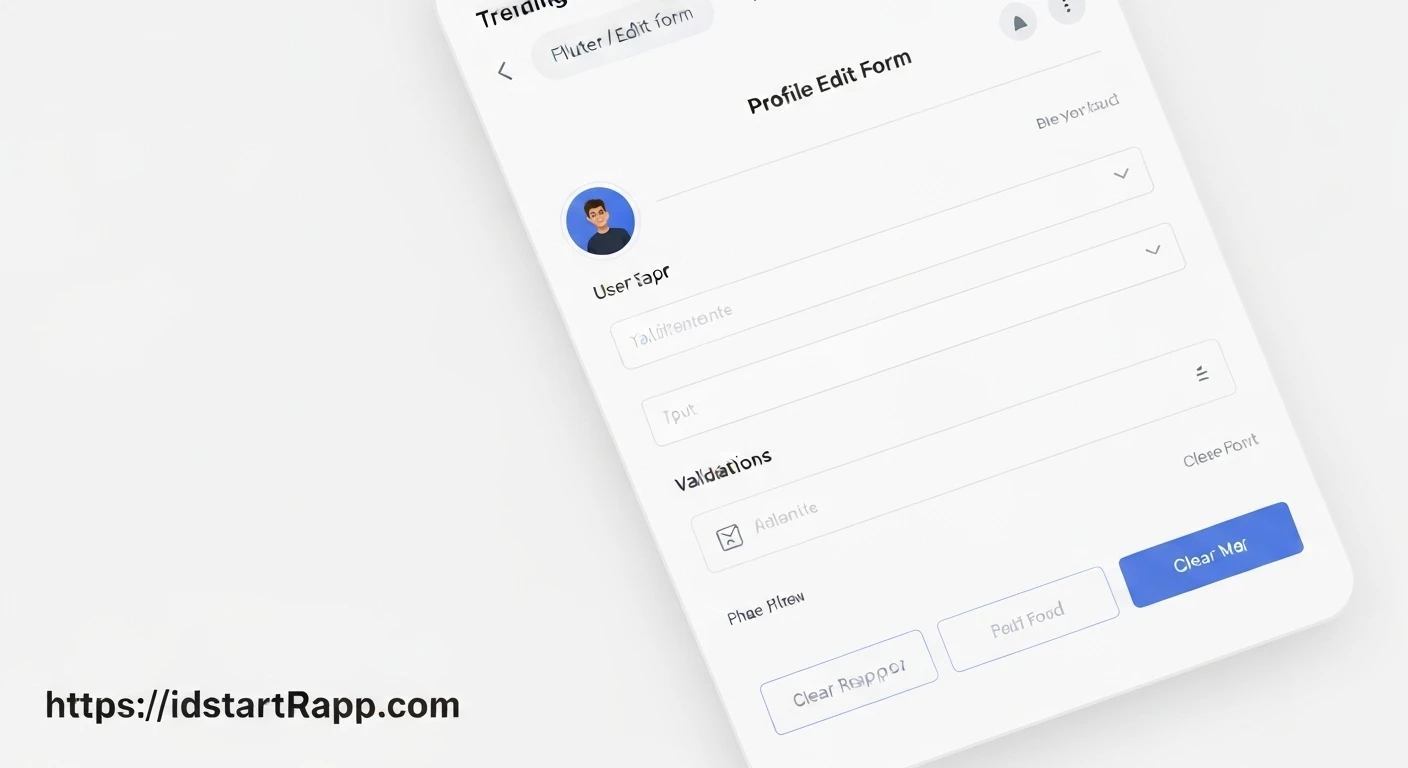

Creating a Profile Edit Form Widget in Flutter
A profile edit form is a fundamental component in almost any modern application that manages user accounts. It allows users to update their personal information, ensuring their data remains current. In Flutter, building such a form involves managing user input, validating data, and handling submission. This article will guide you through creating a professional and reusable profile edit form widget using Flutter's robust UI capabilities.
Prerequisites
- Basic understanding of Flutter widgets (StatelessWidget, StatefulWidget).
- Familiarity with Dart programming language.
- Flutter SDK installed and configured.
1. Setting Up the Project and Widget Structure
First, let's create a new Flutter project or use an existing one. We will create a new file, profile_edit_form.dart, to house our widget. Our form will need to manage state (the user's input), so it will be a StatefulWidget.
In main.dart, we'll set up a simple `MyApp` to demonstrate the form:
// main.dart
import 'package:flutter/material.dart';
import 'profile_edit_form.dart';

void main() => runApp(MyApp());

class MyApp extends StatelessWidget {
  @override
  Widget build(BuildContext context) {
    return MaterialApp(
      title: 'Profile App',
      theme: ThemeData(
        primarySwatch: Colors.blue,
        visualDensity: VisualDensity.adaptivePlatformDensity,
      ),
      home: Scaffold(
        appBar: AppBar(
          title: Text('Edit Profile'),
        ),
        body: ProfileEditForm(
          // Example initial data
          initialName: 'John Doe',
          initialEmail: '[email protected]',
          initialBio: 'Passionate Flutter developer and tech enthusiast.',
          onSave: (name, email, bio) {
            // This callback is triggered when the form is successfully submitted.
            print('Profile Saved:');
            print('Name: $name');
            print('Email: $email');
            print('Bio: $bio');
            ScaffoldMessenger.of(context).showSnackBar(
              SnackBar(content: Text('Profile updated successfully!')),
            );
            // In a real app, you would send this data to a backend service.
          },
        ),
      ),
    );
  }
}
Now, let's define our ProfileEditForm widget in profile_edit_form.dart:
// profile_edit_form.dart
import 'package:flutter/material.dart';

class ProfileEditForm extends StatefulWidget {
  final String? initialName;
  final String? initialEmail;
  final String? initialBio;
  final Function(String name, String email, String bio) onSave;

  const ProfileEditForm({
    Key? key,
    this.initialName,
    this.initialEmail,
    this.initialBio,
    required this.onSave,
  }) : super(key: key);

  @override
  _ProfileEditFormState createState() => _ProfileEditFormState();
}

class _ProfileEditFormState extends State {
  final _formKey = GlobalKey(); // Key for form validation
  late TextEditingController _nameController;
  late TextEditingController _emailController;
  late TextEditingController _bioController;

  @override
  void initState() {
    super.initState();
    // Initialize controllers with initial data or empty strings
    _nameController = TextEditingController(text: widget.initialName ?? '');
    _emailController = TextEditingController(text: widget.initialEmail ?? '');
    _bioController = TextEditingController(text: widget.initialBio ?? '');
  }

  @override
  void dispose() {
    // Dispose controllers to free up resources
    _nameController.dispose();
    _emailController.dispose();
    _bioController.dispose();
    super.dispose();
  }

  void _submitForm() {
    if (_formKey.currentState!.validate()) {
      // If the form is valid, trigger the onSave callback
      widget.onSave(
        _nameController.text,
        _emailController.text,
        _bioController.text,
      );
    }
  }

  @override
  Widget build(BuildContext context) {
    // UI will be built here
    return Container(); // Placeholder
  }
}
In this initial setup:
ProfileEditFormis aStatefulWidgetthat takes optionalinitialName,initialEmail,initialBio, and a requiredonSavecallback._ProfileEditFormStateholds the mutable state._formKey(aGlobalKey) is used to uniquely identify ourFormwidget and allows us to validate it.TextEditingControllers are created for each input field to manage and retrieve their text values. They are initialized ininitStateand disposed indispose.- The
_submitFormmethod will be responsible for validating the form and calling theonSavecallback.
2. Building the Form UI
Now, let's populate the build method in _ProfileEditFormState with TextFormField widgets and a submit button. We'll wrap our input fields in a Form widget, linked to our _formKey.
// profile_edit_form.dart (continued)
// ... inside _ProfileEditFormState
@override
Widget build(BuildContext context) {
  return Padding(
    padding: const EdgeInsets.all(16.0),
    child: Form(
      key: _formKey, // Assign the GlobalKey to the Form
      child: ListView( // Use ListView for scrollability
        children: [
          TextFormField(
            controller: _nameController,
            decoration: InputDecoration(
              labelText: 'Name',
              hintText: 'Enter your full name',
              border: OutlineInputBorder(),
              prefixIcon: Icon(Icons.person),
              contentPadding: EdgeInsets.symmetric(vertical: 12, horizontal: 16),
            ),
            keyboardType: TextInputType.name,
            textCapitalization: TextCapitalization.words,
            validator: (value) {
              if (value == null || value.isEmpty) {
                return 'Please enter your name';
              }
              return null;
            },
          ),
          SizedBox(height: 16), // Spacing between fields
          TextFormField(
            controller: _emailController,
            decoration: InputDecoration(
              labelText: 'Email',
              hintText: 'Enter your email address',
              border: OutlineInputBorder(),
              prefixIcon: Icon(Icons.email),
              contentPadding: EdgeInsets.symmetric(vertical: 12, horizontal: 16),
            ),
            keyboardType: TextInputType.emailAddress,
            validator: (value) {
              if (value == null || value.isEmpty) {
                return 'Please enter your email';
              }
              // Basic email format validation
              if (!RegExp(r'^[^@]+@[^@]+\.[^@]+').hasMatch(value)) {
                return 'Please enter a valid email address';
              }
              return null;
            },
          ),
          SizedBox(height: 16),
          TextFormField(
            controller: _bioController,
            decoration: InputDecoration(
              labelText: 'Bio',
              hintText: 'Tell us about yourself',
              alignLabelWithHint: true, // Aligns label to top for multiline
              border: OutlineInputBorder(),
              prefixIcon: Padding(
                padding: const EdgeInsets.only(bottom: 50.0), // Align icon to top
                child: Icon(Icons.description),
              ),
              contentPadding: EdgeInsets.symmetric(vertical: 12, horizontal: 16),
            ),
            keyboardType: TextInputType.multiline,
            maxLines: 4, // Allow multiple lines for bio
            maxLength: 200, // Optional character limit
          ),
          SizedBox(height: 24),
          ElevatedButton(
            onPressed: _submitForm, // Call our submission handler
            style: ElevatedButton.styleFrom(
              padding: EdgeInsets.symmetric(vertical: 14),
              shape: RoundedRectangleBorder(
                borderRadius: BorderRadius.circular(8),
              ),
              // primary: Theme.of(context).primaryColor, // Deprecated, use backgroundColor
              backgroundColor: Theme.of(context).primaryColor,
              foregroundColor: Colors.white, // Text color
            ),
            child: Text(
              'Save Profile',
              style: TextStyle(fontSize: 18, fontWeight: FontWeight.bold),
            ),
          ),
        ],
      ),
    ),
  );
}
In the UI:
- We use
Paddingto add some margin around the form. - The
Formwidget is the parent, and itskeyproperty is set to_formKey. ListViewis used to ensure the form is scrollable, which is good practice for forms that might exceed screen height on smaller devices.- Each input field is a
TextFormField:controlleris assigned to ourTextEditingControllers.decorationcustomizes the appearance withlabelText,hintText,border, andprefixIcon.keyboardTypespecifies the type of keyboard to display.validatoris a function that returns an error string if the input is invalid, ornullif valid. This is where our validation logic resides.
SizedBoxwidgets provide vertical spacing.ElevatedButtonserves as the submit button, triggering_submitFormwhen pressed.
3. Form Validation and Submission
The validator property of TextFormField is crucial for client-side validation. When _formKey.currentState!.validate() is called, it triggers the validator function for all TextFormFields within that Form.
Our _submitForm method orchestrates this:
// profile_edit_form.dart (continued)
// ... inside _ProfileEditFormState
void _submitForm() {
  if (_formKey.currentState!.validate()) {
    // If all validators return null, the form is valid.
    // In a real application, you might show a loading indicator here.

    // Access the values from the controllers
    final String name = _nameController.text;
    final String email = _emailController.text;
    final String bio = _bioController.text;

    // Call the onSave callback with the collected data
    widget.onSave(name, email, bio);

    // Optionally, clear the form or show a success message
    // For a profile edit form, usually you wouldn't clear it,
    // but navigate back or show a confirmation.
    // _nameController.clear();
    // _emailController.clear();
    // _bioController.clear();
  } else {
    // Form is invalid, validators have already displayed error messages.
    print('Form validation failed.');
  }
}
When _formKey.currentState!.validate() is called:
- Each
TextFormField'svalidatorfunction is executed. - If any validator returns a non-null string, that string is displayed as an error message below the respective field, and
validate()returnsfalse. - If all validators return
null,validate()returnstrue.
Conclusion
You have now successfully created a robust and reusable profile edit form widget in Flutter. This widget incorporates essential features like initial data population, user input fields, form validation, and a clear submission handler. By using StatefulWidget, TextEditingControllers, and GlobalKey, you can manage complex form states and provide a smooth user experience. This structure serves as a solid foundation that can be extended with more features like image uploads, date pickers, or integration with backend services.
Remember, good UI/UX often comes down to clear feedback and easy interaction, which well-structured forms like this one provide.