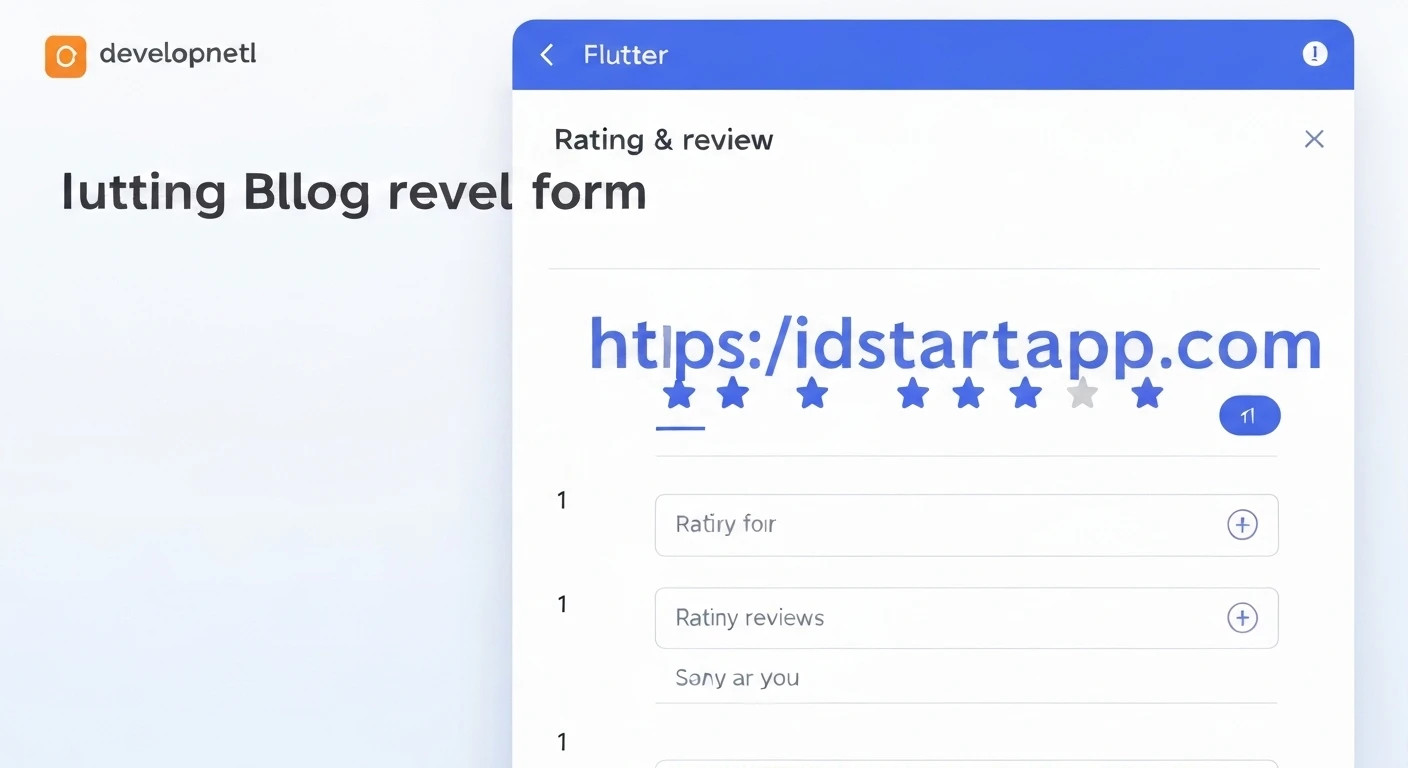

Building a Rating Review Form Widget in Flutter
User feedback is invaluable for any application, service, or product. It helps in understanding user satisfaction, identifying areas for improvement, and fostering a sense of community. A common and effective way to gather this feedback is through a rating and review form. In this article, we'll walk through the process of building a flexible and reusable rating review form widget in Flutter.
Why a Rating Review Form?
A well-designed rating review form allows users to express their opinions easily, typically through a star rating system and an optional text field for detailed comments. This data is crucial for:
- Improving user experience.
- Enhancing product features.
- Building trust and transparency.
- Driving future development decisions.
Prerequisites
To follow along with this tutorial, you should have a basic understanding of Flutter development, including:
- Dart programming language.
- Flutter widgets (StatelessWidget, StatefulWidget).
- State management concepts.
Key Components of Our Widget
Our rating review form will consist of three primary components:
- Star Rating Input: A series of interactive stars allowing users to select a rating.
- Review Text Field: A multi-line text input for users to write their detailed review.
- Submission Button: To finalize and submit the rating and review.
Step-by-Step Implementation
1. Creating the Star Rating Widget
First, let's create a reusable widget for star ratings. This widget will display a set of stars and allow users to tap them to select a rating.
import 'package:flutter/material.dart';

class StarRating extends StatefulWidget {
  final int starCount;
  final int initialRating;
  final double starSize;
  final Color filledStarColor;
  final Color unfilledStarColor;
  final ValueChanged<int> onRatingChanged;

  const StarRating({
    Key? key,
    this.starCount = 5,
    this.initialRating = 0,
    this.starSize = 30.0,
    this.filledStarColor = Colors.amber,
    this.unfilledStarColor = Colors.grey,
    required this.onRatingChanged,
  }) : assert(initialRating >= 0 && initialRating <= starCount),
       super(key: key);

  @override
  State<StarRating> createState() => _StarRatingState();
}

class _StarRatingState extends State<StarRating> {
  late int _rating;

  @override
  void initState() {
    super.initState();
    _rating = widget.initialRating;
  }

  Widget buildStar(int index) {
    Icon icon;
    if (index >= _rating) {
      icon = Icon(
        Icons.star_border,
        color: widget.unfilledStarColor,
        size: widget.starSize,
      );
    } else {
      icon = Icon(
        Icons.star,
        color: widget.filledStarColor,
        size: widget.starSize,
      );
    }
    return GestureDetector(
      onTap: () {
        setState(() {
          _rating = index + 1;
        });
        widget.onRatingChanged(_rating);
      },
      child: icon,
    );
  }

  @override
  Widget build(BuildContext context) {
    return Row(
      mainAxisSize: MainAxisSize.min,
      children: List.generate(
        widget.starCount,
        (index) => buildStar(index),
      ),
    );
  }
}
2. Implementing the Review Text Field
Next, we'll create a simple widget for the review text input. We'll use a `TextFormField` to allow for validation and better control.
import 'package:flutter/material.dart';

class ReviewTextField extends StatelessWidget {
  final TextEditingController controller;
  final String? Function(String?)? validator;

  const ReviewTextField({
    Key? key,
    required this.controller,
    this.validator,
  }) : super(key: key);

  @override
  Widget build(BuildContext context) {
    return TextFormField(
      controller: controller,
      maxLines: 5,
      decoration: const InputDecoration(
        hintText: 'Share your experience...',
        border: OutlineInputBorder(),
        alignLabelWithHint: true,
      ),
      keyboardType: TextInputType.multiline,
      validator: validator,
    );
  }
}
3. Composing the Main Rating Review Form Widget
Now, let's combine these components into our main `RatingReviewFormWidget`. This widget will manage the state of the rating and review text, and handle the submission logic.
import 'package:flutter/material.dart';
import 'package:your_app_name/widgets/star_rating.dart'; // Adjust import path
import 'package:your_app_name/widgets/review_text_field.dart'; // Adjust import path

class RatingReviewFormWidget extends StatefulWidget {
  final ValueChanged<Map<String, dynamic>> onSubmit;
  final int initialRating;
  final String initialReview;
  final String submitButtonText;
  final String? Function(int)? ratingValidator;
  final String? Function(String?)? reviewValidator;

  const RatingReviewFormWidget({
    Key? key,
    required this.onSubmit,
    this.initialRating = 0,
    this.initialReview = '',
    this.submitButtonText = 'Submit Review',
    this.ratingValidator,
    this.reviewValidator,
  }) : assert(initialRating >= 0 && initialRating <= 5),
       super(key: key);

  @override
  State<RatingReviewFormWidget> createState() => _RatingReviewFormWidgetState();
}

class _RatingReviewFormWidgetState extends State<RatingReviewFormWidget> {
  final _formKey = GlobalKey<FormState>();
  final TextEditingController _reviewController = TextEditingController();
  int _currentRating = 0;

  @override
  void initState() {
    super.initState();
    _currentRating = widget.initialRating;
    _reviewController.text = widget.initialReview;
  }

  @override
  void dispose() {
    _reviewController.dispose();
    super.dispose();
  }

  void _submitForm() {
    if (_formKey.currentState!.validate()) {
      widget.onSubmit({
        'rating': _currentRating,
        'review': _reviewController.text,
      });
      // Optionally clear form or show success message
      // setState(() {
      //   _currentRating = 0;
      //   _reviewController.clear();
      // });
    }
  }

  @override
  Widget build(BuildContext context) {
    return Form(
      key: _formKey,
      child: Column(
        crossAxisAlignment: CrossAxisAlignment.start,
        children: [
          const Text(
            'Your Rating:',
            style: TextStyle(fontSize: 18, fontWeight: FontWeight.bold),
          ),
          const SizedBox(height: 10),
          StarRating(
            initialRating: _currentRating,
            onRatingChanged: (rating) {
              setState(() {
                _currentRating = rating;
              });
            },
          ),
          if (widget.ratingValidator != null && widget.ratingValidator!(_currentRating) != null)
            Padding(
              padding: const EdgeInsets.only(top: 8.0, left: 4.0),
              child: Text(
                widget.ratingValidator!(_currentRating)!,
                style: TextStyle(color: Theme.of(context).errorColor, fontSize: 12),
              ),
            ),
          const SizedBox(height: 20),
          const Text(
            'Your Review (optional):',
            style: TextStyle(fontSize: 18, fontWeight: FontWeight.bold),
          ),
          const SizedBox(height: 10),
          ReviewTextField(
            controller: _reviewController,
            validator: widget.reviewValidator,
          ),
          const SizedBox(height: 20),
          Center(
            child: ElevatedButton(
              onPressed: _submitForm,
              style: ElevatedButton.styleFrom(
                padding: const EdgeInsets.symmetric(horizontal: 40, vertical: 15),
              ),
              child: Text(
                widget.submitButtonText,
                style: const TextStyle(fontSize: 16),
              ),
            ),
          ),
        ],
      ),
    );
  }
}
Note: Remember to replace `package:your_app_name/widgets/star_rating.dart` and `package:your_app_name/widgets/review_text_field.dart` with the correct import paths for your project structure.
4. Example Usage (main.dart)
To use the `RatingReviewFormWidget`, you can simply embed it within any Flutter screen. Here's an example of how you might integrate it into your `main.dart` or any other page.
import 'package:flutter/material.dart';
import 'package:your_app_name/widgets/rating_review_form.dart'; // Adjust import path

void main() {
  runApp(const MyApp());
}

class MyApp extends StatelessWidget {
  const MyApp({Key? key}) : super(key: key);

  @override
  Widget build(BuildContext context) {
    return MaterialApp(
      title: 'Rating Review Demo',
      theme: ThemeData(
        primarySwatch: Colors.blue,
      ),
      home: const RatingReviewPage(),
    );
  }
}

class RatingReviewPage extends StatefulWidget {
  const RatingReviewPage({Key? key}) : super(key: key);

  @override
  State<RatingReviewPage> createState() => _RatingReviewPageState();
}

class _RatingReviewPageState extends State<RatingReviewPage> {
  void _handleSubmit(Map<String, dynamic> formData) {
    print('Submitted Rating: ${formData['rating']}');
    print('Submitted Review: ${formData['review']}');
    ScaffoldMessenger.of(context).showSnackBar(
      SnackBar(
        content: Text(
          'Rating: ${formData['rating']}, Review: "${formData['review']}"',
        ),
      ),
    );
  }

  String? _validateRating(int rating) {
    if (rating == 0) {
      return 'Please select a star rating.';
    }
    return null;
  }

  String? _validateReview(String? review) {
    if (review != null && review.isNotEmpty && review.length < 10) {
      return 'Review must be at least 10 characters long.';
    }
    return null;
  }

  @override
  Widget build(BuildContext context) {
    return Scaffold(
      appBar: AppBar(
        title: const Text('Leave a Review'),
      ),
      body: SingleChildScrollView(
        padding: const EdgeInsets.all(16.0),
        child: Column(
          children: [
            const Text(
              'We\'d love to hear your feedback!',
              style: TextStyle(fontSize: 20, fontWeight: FontWeight.w600),
              textAlign: TextAlign.center,
            ),
            const SizedBox(height: 20),
            RatingReviewFormWidget(
              onSubmit: _handleSubmit,
              initialRating: 3, // Example initial rating
              initialReview: 'This is a great app!', // Example initial review
              ratingValidator: _validateRating,
              reviewValidator: _validateReview,
            ),
          ],
        ),
      ),
    );
  }
}
Styling and Customization
Our `RatingReviewFormWidget` is designed to be quite flexible:
- StarRating: You can customize `starCount`, `starSize`, `filledStarColor`, and `unfilledStarColor`.
- ReviewTextField: The underlying `TextFormField` can be styled using its `decoration` property, and you can add more advanced validation rules.
- RatingReviewFormWidget: You can change the `submitButtonText`, provide initial values, and implement custom `ratingValidator` and `reviewValidator` functions.
For more extensive styling, consider wrapping individual components with `Theme` widgets or using `Theme.of(context).copyWith()` to override specific theme properties.
Conclusion
Building a robust rating review form in Flutter doesn't have to be complicated. By breaking it down into smaller, reusable widgets and managing state effectively, you can create a flexible and user-friendly feedback mechanism. This widget serves as a solid foundation, which you can further enhance with animations, advanced validation, backend integration, and more intricate UI designs to perfectly fit your application's needs.