

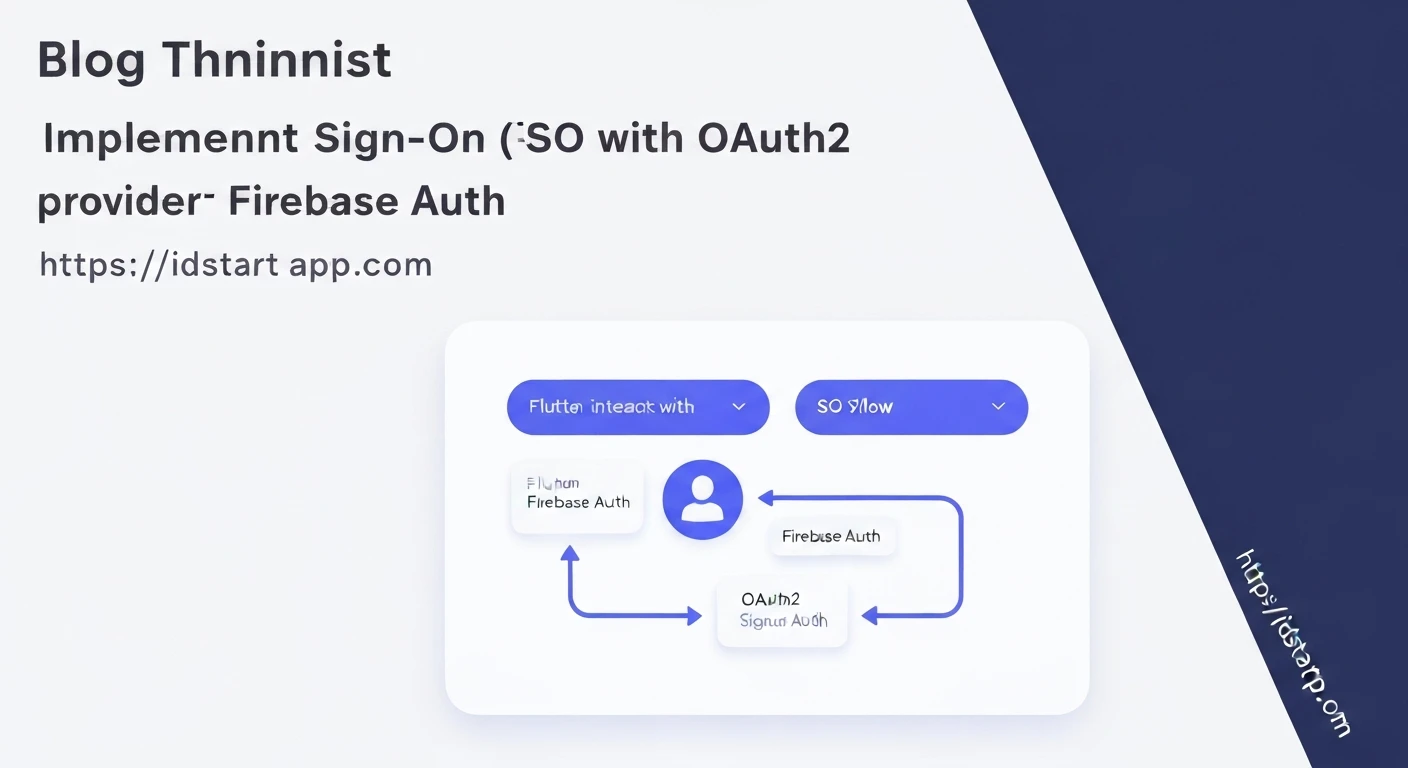

Flutter & Firebase Auth: Implementing SSO with OAuth2 Providers
Single Sign-On (SSO) has become a cornerstone of modern application development, providing users with a seamless and secure authentication experience. By allowing users to log in once and gain access to multiple related applications, SSO significantly enhances user convenience and reduces friction. This article explores how to implement SSO in a Flutter application using Firebase Authentication with OAuth2 providers, such as Google, Facebook, or GitHub.
Understanding the Core Components
- Flutter: Google's UI toolkit for building natively compiled applications for mobile, web, and desktop from a single codebase.
- Firebase Authentication: A comprehensive identity platform offered by Google that supports various authentication methods, including email/password, phone number, and federated identity providers like Google, Facebook, Twitter, and GitHub.
- OAuth2: An authorization framework that enables an application to obtain limited access to a user's account on an HTTP service, such as Facebook or Google. It works by delegating user authentication to the service that hosts the user account and authorizing third-party applications to access the user account.
- SSO (Single Sign-On): An authentication scheme that allows a user to log in with a single ID and password to gain access to multiple connected systems without being prompted for separate credentials for each system.
Prerequisites
Before diving into the implementation, ensure you have the following set up:
- Flutter SDK installed and configured.
- A Firebase project created in the Firebase Console.
- Firebase Authentication enabled for your project.
- At least one OAuth2 provider (e.g., Google, Facebook, GitHub) configured within Firebase Authentication settings, including obtaining their respective client IDs and secrets.
- Your Flutter app registered with Firebase and its
google-services.json(Android) andGoogleService-Info.plist(iOS) files placed in the correct directories.
Firebase Console Setup
To enable SSO with an OAuth2 provider in Firebase, follow these steps:
- Navigate to your Firebase project in the Firebase Console.
- In the left-hand menu, select "Authentication" then click on the "Sign-in method" tab.
- Click on the provider you wish to enable (e.g., Google, Facebook).
- Toggle the "Enable" switch.
- For Google Sign-In, you typically only need to provide a project support email. For other providers like Facebook or GitHub, you will need to enter their App ID/Client ID and App Secret/Client Secret, which you obtain from their respective developer consoles.
- Make sure to add the authorized redirect URIs from Firebase to your OAuth2 provider's console settings if required.
Flutter Project Setup
First, add the necessary dependencies to your Flutter project's pubspec.yaml file:
dependencies:
  flutter:
    sdk: flutter
  firebase_core: ^2.24.2
  firebase_auth: ^4.15.2
  google_sign_in: ^6.1.6 # For Google Sign-In
  # For other providers, you might need different packages
  # e.g., facebook_auth: ^latest_version, flutter_web_auth: ^latest_version
Run flutter pub get to fetch the new packages.
Initialize Firebase in your main.dart file. It's crucial to ensure this is done before any Firebase services are used.
import 'package:firebase_core/firebase_core.dart';
import 'package:flutter/material.dart';
import 'firebase_options.dart'; // Generated by FlutterFire CLI

void main() async {
  WidgetsFlutterBinding.ensureInitialized();
  await Firebase.initializeApp(
    options: DefaultFirebaseOptions.currentPlatform,
  );
  runApp(MyApp());
}

class MyApp extends StatelessWidget {
  @override
  Widget build(BuildContext context) {
    return MaterialApp(
      title: 'Flutter Firebase SSO',
      home: AuthScreen(),
    );
  }
}
Implementing SSO with Google Sign-In (Example)
Google Sign-In is one of the most common OAuth2 providers. Here's how to integrate it:
1. Create a Google Sign-In instanceThe google_sign_in package provides a convenient way to interact with Google's authentication APIs.
import 'package:firebase_auth/firebase_auth.dart';
import 'package:flutter/material.dart';
import 'package:google_sign_in/google_sign_in.dart';

class AuthScreen extends StatefulWidget {
  @override
  _AuthScreenState createState() => _AuthScreenState();
}

class _AuthScreenState extends State {
  final FirebaseAuth _auth = FirebaseAuth.instance;
  final GoogleSignIn _googleSignIn = GoogleSignIn();

  User? _user;

  @override
  void initState() {
    super.initState();
    _auth.authStateChanges().listen((user) {
      setState(() {
        _user = user;
      });
    });
  }

  Future _signInWithGoogle() async {
    try {
      // Begin interactive Google Sign-In process
      final GoogleSignInAccount? googleUser = await _googleSignIn.signIn();

      if (googleUser == null) {
        // User cancelled the sign-in
        return null;
      }

      // Obtain the auth details from the request
      final GoogleSignInAuthentication googleAuth = await googleUser.authentication;

      // Create a new credential
      final AuthCredential credential = GoogleAuthProvider.credential(
        accessToken: googleAuth.accessToken,
        idToken: googleAuth.idToken,
      );

      // Sign in to Firebase with the Google credential
      final UserCredential userCredential = await _auth.signInWithCredential(credential);
      return userCredential.user;
    } catch (e) {
      print("Error signing in with Google: $e");
      return null;
    }
  }

  Future _signOut() async {
    await _googleSignIn.signOut();
    await _auth.signOut();
  }

  @override
  Widget build(BuildContext context) {
    return Scaffold(
      appBar: AppBar(title: Text('Firebase SSO')),
      body: Center(
        child: _user == null
            ? Column(
                mainAxisAlignment: MainAxisAlignment.center,
                children: [
                  ElevatedButton(
                    onPressed: () async {
                      User? user = await _signInWithGoogle();
                      if (user != null) {
                        ScaffoldMessenger.of(context).showSnackBar(
                          SnackBar(content: Text('Signed in as ${user.displayName}')),
                        );
                      }
                    },
                    child: Text('Sign in with Google'),
                  ),
                ],
              )
            : Column(
                mainAxisAlignment: MainAxisAlignment.center,
                children: [
                  Text('Welcome, ${_user!.displayName ?? _user!.email}!'),
                  SizedBox(height: 20),
                  ElevatedButton(
                    onPressed: _signOut,
                    child: Text('Sign Out'),
                  ),
                ],
              ),
      ),
    );
  }
}
- The user clicks the "Sign in with Google" button.
_googleSignIn.signIn()is called, which initiates the Google authentication flow. This typically opens a web browser or a system-specific prompt for the user to select their Google account and grant permissions.- Upon successful authentication by Google, the app receives a
GoogleSignInAccount. - From the
GoogleSignInAccount,googleUser.authenticationis called to getaccessTokenandidToken. These tokens are critical for authenticating with Firebase. - A
GoogleAuthProvider.credentialis created using these tokens. This is a Firebase-specific credential that encapsulates the authentication details from Google. - Finally,
_auth.signInWithCredential(credential)is called. Firebase validates these credentials, authenticates the user, and creates/links a Firebase user account. If the user doesn't exist, Firebase creates a new user record linked to their Google account. If they exist, they are signed in. - The
_auth.authStateChanges()stream updates, and the UI reflects the signed-in user.
Implementing SSO with Other OAuth2 Providers
The general principle for other OAuth2 providers (Facebook, GitHub, Twitter, Apple, etc.) with Firebase is similar:
- Initiate the OAuth2 flow with the chosen provider (e.g., using a specific package like
flutter_facebook_auth, or a general web view/browser launch usingurl_launcherorflutter_web_authto open the authorization URL). - After the user grants permission, the provider redirects back to your app with an authentication code or access token.
- Exchange this code/token for the provider's credentials (e.g.,
FacebookAuthProvider.credential(accessToken: ...)). - Pass these credentials to
FirebaseAuth.instance.signInWithCredential().
For example, with Facebook:
// Add facebook_auth to pubspec.yaml

import 'package:firebase_auth/firebase_auth.dart';
import 'package:flutter_facebook_auth/flutter_facebook_auth.dart';

Future _signInWithFacebook() async {
  try {
    final LoginResult result = await FacebookAuth.instance.login();

    if (result.status == LoginStatus.success) {
      final AccessToken accessToken = result.accessToken!;
      final OAuthCredential credential = FacebookAuthProvider.credential(accessToken.token);
      final UserCredential userCredential = await FirebaseAuth.instance.signInWithCredential(credential);
      return userCredential.user;
    } else {
      print('Facebook login failed: ${result.message}');
      return null;
    }
  } catch (e) {
    print('Error signing in with Facebook: $e');
    return null;
  }
}
Advanced Considerations
- Error Handling: Implement robust error handling for network issues, user cancellations, or invalid credentials. Display user-friendly messages.
- Account Linking: Firebase allows linking multiple authentication providers to a single user account. This can be useful if a user initially signs in with Google and later wants to link their Facebook account. Use
_user.linkWithCredential(credential). - Token Management: Firebase automatically handles the refresh of ID tokens, but for direct interaction with OAuth2 provider APIs, you might need to manage their access tokens and refresh tokens yourself.
- Deep Linking/URL Schemes: For web-based OAuth2 flows on mobile, ensure your app is configured to handle deep links or custom URL schemes for the redirect URI from the OAuth2 provider.
Conclusion
Implementing SSO with Flutter and Firebase Authentication using OAuth2 providers significantly streamlines the user experience. By leveraging Firebase's robust backend and Flutter's versatile UI capabilities, developers can quickly integrate popular social logins, offering a secure, familiar, and convenient way for users to access their applications.


