

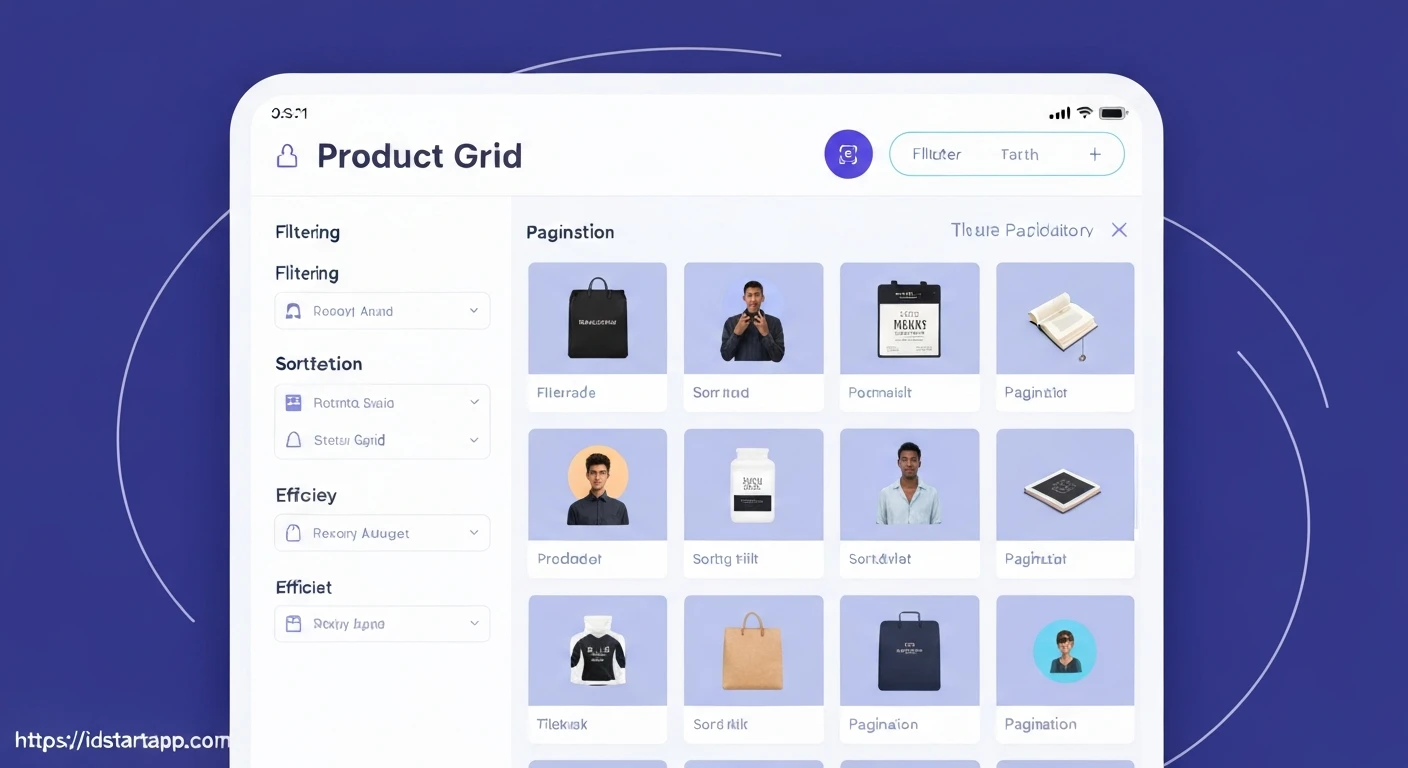

Creating a Product Grid Widget with Filter, Sort, and Pagination in Flutter
In modern e-commerce and catalog applications, displaying a list of products in an organized, searchable, and navigable manner is crucial for a great user experience. A product grid widget that incorporates filtering, sorting, and pagination capabilities allows users to efficiently browse through large datasets and find exactly what they're looking for. This article will guide you through building such a robust product grid in Flutter.
Core Concepts
Before diving into the implementation, let's understand the key concepts involved:
- Product Model: A data structure representing a single product, including properties like ID, name, price, image, category, etc.
- Data Service: A layer responsible for fetching product data, typically from an API. It will handle applying filter, sort, and pagination parameters to the data request.
- Filtering: Allows users to narrow down the product list based on specific criteria (e.g., category, brand, price range).
- Sorting: Enables users to arrange products in a particular order (e.g., by price ascending/descending, by name, by relevance).
- Pagination: Divides the entire product list into smaller, manageable pages, preventing overwhelming users with too much data at once and improving performance.
- UI Components: Widgets like
GridView.builderfor efficient display,DropdownButtonfor sort/filter options,TextFieldfor search, and buttons for pagination controls. - State Management: Handling the dynamic changes in filter, sort, and pagination parameters, and updating the UI accordingly. For simplicity, we'll use
setStatein this example, but for larger applications, consider Provider, BLoC, or Riverpod.
1. Product Data Model
First, let's define a simple Product class that will represent our product data.
// lib/models/product.dart
class Product {
  final String id;
  final String name;
  final String imageUrl;
  final double price;
  final String category;

  Product({
    required this.id,
    required this.name,
    required this.imageUrl,
    required this.price,
    required this.category,
  });

  factory Product.fromJson(Map<String, dynamic> json) {
    return Product(
      id: json['id'],
      name: json['name'],
      imageUrl: json['imageUrl'],
      price: json['price'].toDouble(),
      category: json['category'],
    );
  }
}
2. Product Data Service (Mock API)
Next, we'll create a mock service that simulates fetching products. In a real application, this would involve making HTTP requests to a backend API. This service will also apply the filter, sort, and pagination logic internally.
// lib/services/product_service.dart
import 'dart:async';
import 'dart:math';
import '../models/product.dart';

class ProductService {
  final List<Product> _allProducts = List.generate(
    100,
    (index) => Product(
      id: (index + 1).toString(),
      name: 'Product ${index + 1}',
      imageUrl: 'https://via.placeholder.com/150/<randomIndex>?text=P${index + 1}',
      price: 10.0 + Random().nextDouble() * 100,
      category: ['Electronics', 'Books', 'Clothing'][index % 3],
    ),
  );

  Future<Map<String, dynamic>> fetchProducts({
    int page = 1,
    int pageSize = 10,
    String? category,
    String? sortBy, // 'name_asc', 'name_desc', 'price_asc', 'price_desc'
    String? query,
  }) async {
    await Future.delayed(const Duration(milliseconds: 500)); // Simulate network delay

    List<Product> filteredProducts = List.from(_allProducts);

    // Apply query filter
    if (query != null && query.isNotEmpty) {
      filteredProducts = filteredProducts
          .where((p) => p.name.toLowerCase().contains(query.toLowerCase()))
          .toList();
    }

    // Apply category filter
    if (category != null && category != 'All') {
      filteredProducts = filteredProducts
          .where((p) => p.category == category)
          .toList();
    }

    // Apply sorting
    if (sortBy != null) {
      filteredProducts.sort((a, b) {
        int comparison = 0;
        switch (sortBy) {
          case 'name_asc':
            comparison = a.name.compareTo(b.name);
            break;
          case 'name_desc':
            comparison = b.name.compareTo(a.name);
            break;
          case 'price_asc':
            comparison = a.price.compareTo(b.price);
            break;
          case 'price_desc':
            comparison = b.price.compareTo(a.price);
            break;
        }
        return comparison;
      });
    }

    final int totalProducts = filteredProducts.length;
    final int startIndex = (page - 1) * pageSize;
    final int endIndex = min(startIndex + pageSize, totalProducts);

    if (startIndex >= totalProducts) {
      return {
        'products': <Product>[],
        'totalProducts': totalProducts,
        'totalPages': (totalProducts / pageSize).ceil(),
      };
    }

    final List<Product> paginatedProducts = filteredProducts.sublist(startIndex, endIndex);

    return {
      'products': paginatedProducts,
      'totalProducts': totalProducts,
      'totalPages': (totalProducts / pageSize).ceil(),
    };
  }
}
3. Product Grid Widget
This is the main widget that will orchestrate the display of products, handle user interactions for filtering, sorting, and pagination, and update the UI.
// lib/widgets/product_grid_widget.dart
import 'package:flutter/material.dart';
import '../models/product.dart';
import '../services/product_service.dart';

class ProductGridWidget extends StatefulWidget {
  const ProductGridWidget({super.key});

  @override
  State<ProductGridWidget> createState() => _ProductGridWidgetState();
}

class _ProductGridWidgetState extends State<ProductGridWidget> {
  final ProductService _productService = ProductService();
  final TextEditingController _searchController = TextEditingController();

  List<Product> _products = [];
  bool _isLoading = false;
  String? _error;

  // Pagination state
  int _currentPage = 1;
  final int _pageSize = 12;
  int _totalPages = 1;
  int _totalProducts = 0;

  // Filter state
  String _selectedCategory = 'All';
  final List<String> _categories = ['All', 'Electronics', 'Books', 'Clothing'];

  // Sort state
  String _sortBy = 'name_asc';
  final List<Map<String, String>> _sortOptions = [
    {'value': 'name_asc', 'label': 'Name (A-Z)'},
    {'value': 'name_desc', 'label': 'Name (Z-A)'},
    {'value': 'price_asc', 'label': 'Price (Low to High)'},
    {'value': 'price_desc', 'label': 'Price (High to Low)'},
  ];

  @override
  void initState() {
    super.initState();
    _fetchProducts();
    _searchController.addListener(_onSearchChanged);
  }

  @override
  void dispose() {
    _searchController.removeListener(_onSearchChanged);
    _searchController.dispose();
    super.dispose();
  }

  void _onSearchChanged() {
    // Debounce the search input to avoid too many requests
    if (_searchController.text.isEmpty || _searchController.text.length % 3 == 0) {
      _currentPage = 1; // Reset page on search
      _fetchProducts();
    }
  }

  Future<void> _fetchProducts() async {
    setState(() {
      _isLoading = true;
      _error = null;
    });

    try {
      final Map<String, dynamic> result = await _productService.fetchProducts(
        page: _currentPage,
        pageSize: _pageSize,
        category: _selectedCategory,
        sortBy: _sortBy,
        query: _searchController.text,
      );
      setState(() {
        _products = result['products'] as List<Product>;
        _totalProducts = result['totalProducts'] as int;
        _totalPages = result['totalPages'] as int;
      });
    } catch (e) {
      setState(() {
        _error = 'Failed to load products: $e';
      });
    } finally {
      setState(() {
        _isLoading = false;
      });
    }
  }

  void _onPageChanged(int newPage) {
    if (newPage > 0 && newPage <= _totalPages) {
      setState(() {
        _currentPage = newPage;
      });
      _fetchProducts();
    }
  }

  void _onCategoryChanged(String? newCategory) {
    if (newCategory != null) {
      setState(() {
        _selectedCategory = newCategory;
        _currentPage = 1; // Reset page on filter change
      });
      _fetchProducts();
    }
  }

  void _onSortByChanged(String? newSortBy) {
    if (newSortBy != null) {
      setState(() {
        _sortBy = newSortBy;
        _currentPage = 1; // Reset page on sort change
      });
      _fetchProducts();
    }
  }

  @override
  Widget build(BuildContext context) {
    return Scaffold(
      appBar: AppBar(
        title: const Text('Product Catalog'),
        actions: [
          IconButton(
            icon: const Icon(Icons.refresh),
            onPressed: () {
              _currentPage = 1;
              _searchController.clear();
              _selectedCategory = 'All';
              _sortBy = 'name_asc';
              _fetchProducts();
            },
          ),
        ],
      ),
      body: Column(
        children: [
          Padding(
            padding: const EdgeInsets.all(8.0),
            child: TextField(
              controller: _searchController,
              decoration: InputDecoration(
                labelText: 'Search Products',
                hintText: 'Enter product name...',
                prefixIcon: const Icon(Icons.search),
                border: OutlineInputBorder(
                  borderRadius: BorderRadius.circular(8.0),
                ),
                suffixIcon: _searchController.text.isNotEmpty
                    ? IconButton(
                        icon: const Icon(Icons.clear),
                        onPressed: () {
                          _searchController.clear();
                          _currentPage = 1;
                          _fetchProducts();
                        },
                      )
                    : null,
              ),
            ),
          ),
          Padding(
            padding: const EdgeInsets.symmetric(horizontal: 8.0),
            child: Row(
              children: [
                Expanded(
                  child: DropdownButtonFormField<String>(
                    value: _selectedCategory,
                    decoration: const InputDecoration(
                      labelText: 'Category',
                      border: OutlineInputBorder(),
                      contentPadding: EdgeInsets.symmetric(horizontal: 10, vertical: 8),
                    ),
                    items: _categories.map((String category) {
                      return DropdownMenuItem<String>(
                        value: category,
                        child: Text(category),
                      );
                    }).toList(),
                    onChanged: _onCategoryChanged,
                  ),
                ),
                const SizedBox(width: 10),
                Expanded(
                  child: DropdownButtonFormField<String>(
                    value: _sortBy,
                    decoration: const InputDecoration(
                      labelText: 'Sort By',
                      border: OutlineInputBorder(),
                      contentPadding: EdgeInsets.symmetric(horizontal: 10, vertical: 8),
                    ),
                    items: _sortOptions.map((Map<String, String> option) {
                      return DropdownMenuItem<String>(
                        value: option['value'],
                        child: Text(option['label']!),
                      );
                    }).toList(),
                    onChanged: _onSortByChanged,
                  ),
                ),
              ],
            ),
          ),
          const SizedBox(height: 10),
          Expanded(
            child: _isLoading
                ? const Center(child: CircularProgressIndicator())
                : _error != null
                    ? Center(child: Text('Error: $_error'))
                    : _products.isEmpty
                        ? const Center(child: Text('No products found.'))
                        : GridView.builder(
                            padding: const EdgeInsets.all(8.0),
                            gridDelegate: const SliverGridDelegateWithFixedCrossAxisCount(
                              crossAxisCount: 2, // 2 items per row
                              crossAxisSpacing: 10,
                              mainAxisSpacing: 10,
                              childAspectRatio: 0.75, // Adjust as needed
                            ),
                            itemCount: _products.length,
                            itemBuilder: (context, index) {
                              final product = _products[index];
                              return Card(
                                elevation: 2,
                                child: Column(
                                  crossAxisAlignment: CrossAxisAlignment.start,
                                  children: [
                                    Expanded(
                                      child: Image.network(
                                        product.imageUrl,
                                        fit: BoxFit.cover,
                                        width: double.infinity,
                                        errorBuilder: (context, error, stackTrace) =>
                                            const Center(child: Icon(Icons.broken_image)),
                                      ),
                                    ),
                                    Padding(
                                      padding: const EdgeInsets.all(8.0),
                                      child: Column(
                                        crossAxisAlignment: CrossAxisAlignment.start,
                                        children: [
                                          Text(
                                            product.name,
                                            style: const TextStyle(
                                                fontWeight: FontWeight.bold, fontSize: 16),
                                            maxLines: 1,
                                            overflow: TextOverflow.ellipsis,
                                          ),
                                          const SizedBox(height: 4),
                                          Text(
                                            '\$${product.price.toStringAsFixed(2)}',
                                            style: TextStyle(
                                                color: Colors.green[700], fontSize: 14),
                                          ),
                                          const SizedBox(height: 4),
                                          Text(
                                            product.category,
                                            style: TextStyle(
                                                color: Colors.grey[600], fontSize: 12),
                                          ),
                                        ],
                                      ),
                                    ),
                                  ],
                                ),
                              );
                            },
                          ),
          ),
          if (!_isLoading && _totalProducts > 0)
            Padding(
              padding: const EdgeInsets.all(8.0),
              child: Row(
                mainAxisAlignment: MainAxisAlignment.center,
                children: [
                  ElevatedButton(
                    onPressed: _currentPage > 1 ? () => _onPageChanged(_currentPage - 1) : null,
                    child: const Text('Previous'),
                  ),
                  Padding(
                    padding: const EdgeInsets.symmetric(horizontal: 16.0),
                    child: Text('Page $_currentPage of $_totalPages'),
                  ),
                  ElevatedButton(
                    onPressed: _currentPage < _totalPages ? () => _onPageChanged(_currentPage + 1) : null,
                    child: const Text('Next'),
                  ),
                ],
              ),
            ),
        ],
      ),
    );
  }
}
4. Integrating into Your App
To use the ProductGridWidget, simply add it to your main.dart file or any other screen in your Flutter application.
// lib/main.dart
import 'package:flutter/material.dart';
import 'package:product_app/widgets/product_grid_widget.dart';

void main() {
  runApp(const MyApp());
}

class MyApp extends StatelessWidget {
  const MyApp({super.key});

  @override
  Widget build(BuildContext context) {
    return MaterialApp(
      title: 'Product Catalog',
      theme: ThemeData(
        primarySwatch: Colors.blue,
        visualDensity: VisualDensity.adaptivePlatformDensity,
      ),
      home: const ProductGridWidget(),
    );
  }
}
Explanation of Key Parts:
- State Variables:
_products,_isLoading,_error,_currentPage,_totalPages,_selectedCategory,_sortByare all managed within the widget's state. _fetchProducts(): This asynchronous method is the heart of data fetching. It calls theProductServicewith the current filter, sort, and pagination parameters. It handles loading states and errors._onPageChanged(),_onCategoryChanged(),_onSortByChanged(): These methods update the respective state variables, reset the page to 1 (crucial for consistent UX), and then trigger a new data fetch via_fetchProducts().TextFieldfor Search: The_searchControllerlistens for changes. A simple debounce (checking `text.length % 3 == 0` or if empty) is used to prevent excessive API calls while typing. For more robust debouncing, consider using a timer.DropdownButtonFormFieldfor Filter/Sort: These widgets provide a clean way for users to select options. TheironChangedcallbacks trigger state updates and data re-fetching.GridView.builder: This is highly efficient for displaying a large number of items in a grid. It only builds widgets for the items that are currently visible on screen.- Loading/Error/Empty States: The UI gracefully handles different states:
CircularProgressIndicatorwhen_isLoadingis true.- Error message when
_erroris not null. - "No products found" message when
_productsis empty after loading.
- Pagination Controls: Simple "Previous" and "Next" buttons allow navigation between pages. Their `onPressed` property is conditionally enabled/disabled based on the current page and total pages.
Further Enhancements
- Infinite Scrolling: Instead of explicit pagination buttons, you could implement infinite scrolling by attaching a
ScrollControllerto theGridViewand loading the next page when the user scrolls near the end of the list. - More Filters: Add filters for price range (using a
RangeSlider), brand, ratings, etc. - State Management Libraries: For complex applications, consider using state management solutions like Provider, BLoC/Cubit, Riverpod, or GetX to better separate concerns and manage global state.
- Search Debouncing: Implement a more robust search debounce using a
Timerto delay API calls until the user stops typing for a short period. - Shimmer Effect: Show a shimmering loading animation for product cards while data is being fetched to improve perceived performance.
- Accessibility: Ensure all interactive elements have proper semantic labels.
- Responsiveness: Adjust
crossAxisCountinGridView.builderbased on screen width for different device sizes (e.g., usingMediaQuery).
Conclusion
Building a product grid with filtering, sorting, and pagination is a fundamental requirement for many Flutter applications dealing with product catalogs. By carefully structuring your data model, services, and UI components, and managing the application's state effectively, you can create a highly functional and user-friendly experience. The example provided lays a solid foundation, which you can expand upon to meet the specific needs of your application.


