

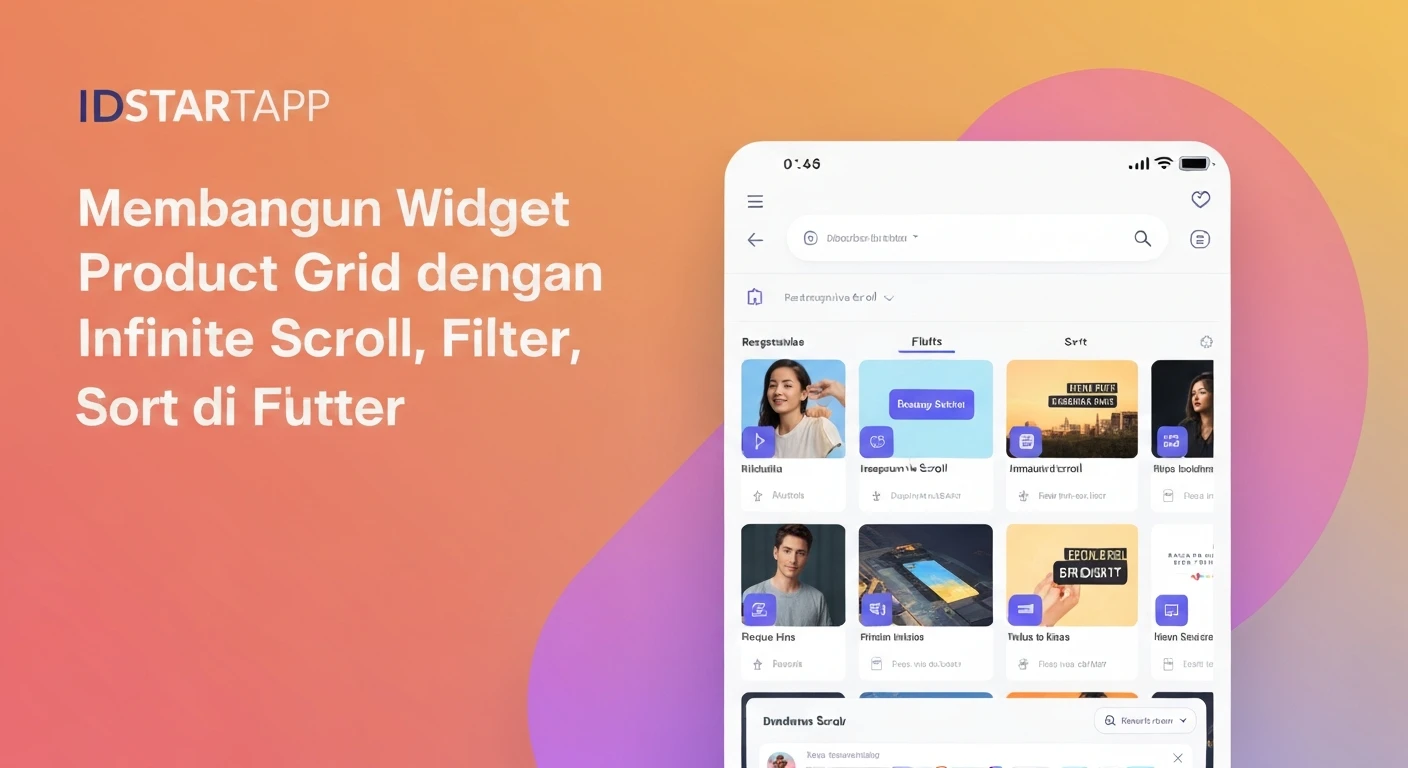

Building a Product Grid Widget with Infinite Scroll, Filter, and Sort in Flutter
Creating a dynamic and interactive product display is a fundamental requirement for most e-commerce or catalog applications. A robust product grid often includes features like infinite scrolling to load more items as the user scrolls, filtering options to refine the displayed products, and sorting capabilities to arrange them in a desired order. This article will guide you through building such a sophisticated product grid widget in Flutter, covering the essential components and best practices.
Introduction
In modern mobile applications, users expect a seamless experience when browsing large datasets. For product listings, this means not having to wait for all products to load at once, the ability to quickly narrow down choices, and the flexibility to view products by price, relevance, or other criteria. We will construct a Flutter widget that efficiently handles these demands by integrating pagination with infinite scroll, dynamic filtering, and customizable sorting.
Core Concepts
Before diving into the code, let's briefly touch upon the core Flutter concepts we'll be utilizing:
- StatefulWidget: To manage the state of our product list, including loading status, current page, filters, and sort options.
- ListView.builder / GridView.builder: For efficiently rendering a potentially large number of items without loading all of them into memory at once.
- ScrollController: To detect when the user has scrolled to the end of the list, triggering the loading of more items.
- Asynchronous Programming: Using
async/awaitfor fetching data, typically from an API or a local database. - UI Updates: Using
setState()to reflect changes in the data (new products, filtered list, sorted order) on the UI.
1. Product Data Model
First, let's define a simple data model for our products. This will represent the structure of each product item.
class Product {
  final String id;
  final String name;
  final String imageUrl;
  final double price;
  final String category;
  final double rating;

  Product({
    required this.id,
    required this.name,
    required this.imageUrl,
    required this.price,
    required this.category,
    required this.rating,
  });

  factory Product.fromJson(Map<String, dynamic> json) {
    return Product(
      id: json['id'],
      name: json['name'],
      imageUrl: json['imageUrl'],
      price: json['price'].toDouble(),
      category: json['category'],
      rating: json['rating'].toDouble(),
    );
  }
}
2. Mock Product Service
To simulate fetching data, we'll create a mock service. In a real application, this would involve HTTP requests to a backend API.
import 'dart:math';

class ProductService {
  static final List<Product> _allProducts = List.generate(
    100,
    (index) => Product(
      id: 'p${index + 1}',
      name: 'Product Name ${index + 1}',
      imageUrl: 'https://picsum.photos/id/${100 + index}/200/300',
      price: 10.0 + (index * 0.5),
      category: ['Electronics', 'Books', 'Clothing'][index % 3],
      rating: 3.0 + (index % 5 * 0.5),
    ),
  );

  Future<List<Product>> fetchProducts({
    int page = 1,
    int limit = 10,
    String? categoryFilter,
    String? sortBy, // e.g., 'priceAsc', 'priceDesc', 'ratingDesc'
  }) async {
    await Future.delayed(const Duration(seconds: 1)); // Simulate network delay

    List<Product> filteredProducts = _allProducts;

    if (categoryFilter != null && categoryFilter != 'All') {
      filteredProducts = filteredProducts
          .where((product) => product.category == categoryFilter)
          .toList();
    }

    if (sortBy != null) {
      filteredProducts.sort((a, b) {
        if (sortBy == 'priceAsc') {
          return a.price.compareTo(b.price);
        } else if (sortBy == 'priceDesc') {
          return b.price.compareTo(a.price);
        } else if (sortBy == 'ratingDesc') {
          return b.rating.compareTo(a.rating);
        }
        return 0;
      });
    }

    final startIndex = (page - 1) * limit;
    if (startIndex >= filteredProducts.length) {
      return []; // No more data
    }

    final endIndex = min(startIndex + limit, filteredProducts.length);
    return filteredProducts.sublist(startIndex, endIndex);
  }

  Future<List<String>> fetchCategories() async {
    await Future.delayed(const Duration(milliseconds: 500));
    return ['All', 'Electronics', 'Books', 'Clothing'];
  }
}
3. Product Grid Widget Implementation
Now, let's build the main widget that will display our products, including infinite scroll, filtering, and sorting.
import 'package:flutter/material.dart';
// Assuming product_model.dart and product_service.dart are in the same project
import 'product_model.dart';
import 'product_service.dart';

class ProductGridScreen extends StatefulWidget {
  const ProductGridScreen({super.key});

  @override
  State<ProductGridScreen> createState() => _ProductGridScreenState();
}

class _ProductGridScreenState extends State<ProductGridScreen> {
  final ProductService _productService = ProductService();
  final ScrollController _scrollController = ScrollController();

  List<Product> _products = [];
  bool _isLoading = false;
  bool _hasMore = true;
  int _currentPage = 1;
  String? _selectedCategory = 'All';
  String? _selectedSortOption = 'priceAsc'; // Default sort

  List<String> _categories = ['All'];
  List<Map<String, String>> _sortOptions = [
    {'value': 'priceAsc', 'label': 'Price: Low to High'},
    {'value': 'priceDesc', 'label': 'Price: High to Low'},
    {'value': 'ratingDesc', 'label': 'Rating: High to Low'},
  ];

  @override
  void initState() {
    super.initState();
    _fetchCategories();
    _fetchProducts();
    _scrollController.addListener(_onScroll);
  }

  @override
  void dispose() {
    _scrollController.dispose();
    super.dispose();
  }

  Future<void> _fetchCategories() async {
    final categories = await _productService.fetchCategories();
    setState(() {
      _categories = ['All', ...categories]; // Ensure 'All' is present
    });
  }

  Future<void> _fetchProducts({bool isInitialLoad = false}) async {
    if (_isLoading || (!_hasMore && !isInitialLoad)) return;

    setState(() {
      _isLoading = true;
    });

    if (isInitialLoad) {
      _products = [];
      _currentPage = 1;
      _hasMore = true;
    }

    try {
      final newProducts = await _productService.fetchProducts(
        page: _currentPage,
        limit: 10,
        categoryFilter: _selectedCategory,
        sortBy: _selectedSortOption,
      );

      setState(() {
        _products.addAll(newProducts);
        _currentPage++;
        _isLoading = false;
        _hasMore = newProducts.isNotEmpty;
      });
    } catch (e) {
      // Handle error, e.g., show a snackbar
      debugPrint('Error fetching products: $e');
      setState(() {
        _isLoading = false;
        _hasMore = false; // Prevent further loading on error
      });
    }
  }

  void _onScroll() {
    if (_scrollController.position.pixels ==
            _scrollController.position.maxScrollExtent &&
        _hasMore &&
        !_isLoading) {
      _fetchProducts();
    }
  }

  void _onCategoryFilterChanged(String? newCategory) {
    if (newCategory == _selectedCategory) return;
    setState(() {
      _selectedCategory = newCategory;
    });
    _fetchProducts(isInitialLoad: true); // Reset and re-fetch with new filter
  }

  void _onSortOptionChanged(String? newSortOption) {
    if (newSortOption == _selectedSortOption) return;
    setState(() {
      _selectedSortOption = newSortOption;
    });
    _fetchProducts(isInitialLoad: true); // Reset and re-fetch with new sort
  }

  @override
  Widget build(BuildContext context) {
    return Scaffold(
      appBar: AppBar(
        title: const Text('Product Catalog'),
        actions: [
          // Filter Dropdown
          DropdownButton<String>(
            value: _selectedCategory,
            hint: const Text('Filter by Category'),
            items: _categories.map((String category) {
              return DropdownMenuItem<String>(
                value: category,
                child: Text(category),
              );
            }).toList(),
            onChanged: _onCategoryFilterChanged,
          ),
          const SizedBox(width: 16),
          // Sort Dropdown
          DropdownButton<String>(
            value: _selectedSortOption,
            hint: const Text('Sort By'),
            items: _sortOptions.map((Map<String, String> option) {
              return DropdownMenuItem<String>(
                value: option['value'],
                child: Text(option['label']!),
              );
            }).toList(),
            onChanged: _onSortOptionChanged,
          ),
          const SizedBox(width: 8),
        ],
      ),
      body: _products.isEmpty && _isLoading
          ? const Center(child: CircularProgressIndicator())
          : RefreshIndicator(
              onRefresh: () => _fetchProducts(isInitialLoad: true),
              child: GridView.builder(
                controller: _scrollController,
                padding: const EdgeInsets.all(8.0),
                gridDelegate: const SliverGridDelegateWithFixedCrossAxisCount(
                  crossAxisCount: 2, // 2 columns
                  crossAxisSpacing: 8.0,
                  mainAxisSpacing: 8.0,
                  childAspectRatio: 0.7, // Adjust as needed
                ),
                itemCount: _products.length + (_hasMore ? 1 : 0),
                itemBuilder: (context, index) {
                  if (index == _products.length) {
                    return _isLoading
                        ? const Center(child: CircularProgressIndicator())
                        : const SizedBox.shrink(); // No more items, hide loader
                  }
                  final product = _products[index];
                  return ProductItem(product: product);
                },
              ),
            ),
    );
  }
}

class ProductItem extends StatelessWidget {
  final Product product;

  const ProductItem({super.key, required this.product});

  @override
  Widget build(BuildContext context) {
    return Card(
      elevation: 2.0,
      shape: RoundedRectangleBorder(borderRadius: BorderRadius.circular(8.0)),
      child: Column(
        crossAxisAlignment: CrossAxisAlignment.start,
        children: [
          Expanded(
            child: ClipRRect(
              borderRadius:
                  const BorderRadius.vertical(top: Radius.circular(8.0)),
              child: Image.network(
                product.imageUrl,
                fit: BoxFit.cover,
                width: double.infinity,
                errorBuilder: (context, error, stackTrace) =>
                    const Center(child: Icon(Icons.broken_image)),
              ),
            ),
          ),
          Padding(
            padding: const EdgeInsets.all(8.0),
            child: Column(
              crossAxisAlignment: CrossAxisAlignment.start,
              children: [
                Text(
                  product.name,
                  maxLines: 1,
                  overflow: TextOverflow.ellipsis,
                  style: const TextStyle(
                      fontWeight: FontWeight.bold, fontSize: 16),
                ),
                const SizedBox(height: 4),
                Text(
                  '\$${product.price.toStringAsFixed(2)}',
                  style:
                      const TextStyle(color: Colors.green, fontSize: 14),
                ),
                const SizedBox(height: 4),
                Row(
                  children: [
                    Icon(Icons.star, color: Colors.amber, size: 16),
                    Text('${product.rating}'),
                    Spacer(),
                    Text(
                      product.category,
                      style: TextStyle(fontSize: 12, color: Colors.grey[600]),
                    ),
                  ],
                ),
              ],
            ),
          ),
        ],
      ),
    );
  }
}
Explanation of Key Parts:
-
State Management
The
_ProductGridScreenStateclass holds all the necessary state variables:_products: The list of currently displayed products._isLoading: A boolean to track if data is currently being fetched, preventing duplicate requests._hasMore: A boolean indicating if there are more products to load from the "API"._currentPage: Keeps track of the current page for pagination._selectedCategory,_selectedSortOption: Stores the user's current filter and sort selections.
-
Infinite Scroll
This is achieved using a
ScrollControllerattached to theGridView.builder. IninitState, a listener is added to_scrollController:_scrollController.addListener(_onScroll);The
_onScrollmethod checks if the user has scrolled to the very end of the list (_scrollController.position.pixels == _scrollController.position.maxScrollExtent). If so, and if there are more items to load and no current loading is in progress, it calls_fetchProducts()to append more items. -
Loading Indicator for Infinite Scroll
Inside
GridView.builder'sitemBuilder, we check ifindex == _products.length. If it is, and_hasMoreis true, we display aCircularProgressIndicatorat the bottom of the grid. This creates the common "loading more items" experience. -
Filtering and Sorting UI
DropdownButtonwidgets are placed in theAppBar. When a new category or sort option is selected,_onCategoryFilterChangedor_onSortOptionChangedis called. These methods update the state variables (_selectedCategoryor_selectedSortOption) and then trigger_fetchProducts(isInitialLoad: true). TheisInitialLoad: trueargument ensures that the product list is cleared,_currentPageis reset, and new data is fetched from the beginning with the applied filter/sort. -
_fetchProductsMethodThis method encapsulates the data fetching logic:
- It sets
_isLoadingto true to prevent concurrent requests. - It conditionally clears
_productsand resets_currentPageif it's an initial load (due to filter/sort change or refresh). - It calls
_productService.fetchProducts, passing the currentpage,limit,categoryFilter, andsortBy. - Upon successful data retrieval, it updates
_products, increments_currentPage, and sets_hasMorebased on whether new products were returned.
- It sets
-
ProductItemWidgetA separate stateless widget is used to render each product item, promoting reusability and cleaner code. It displays the product image, name, price, rating, and category within a
Card. -
RefreshIndicator
Wrapping the
GridView.builderwith aRefreshIndicatorallows users to pull down to refresh the entire product list, which triggers_fetchProducts(isInitialLoad: true).
Conclusion
You have successfully built a sophisticated product grid widget in Flutter that incorporates infinite scrolling, dynamic filtering, and sorting capabilities. This pattern is highly reusable and can be adapted for various data-intensive displays. By understanding the core principles of state management, asynchronous data fetching, and efficient list rendering, you can create highly performant and user-friendly interfaces in your Flutter applications.
Remember that for larger, more complex applications, you might consider advanced state management solutions like Provider, BLoC, or Riverpod to separate UI logic from business logic more cleanly. However, the fundamental concepts demonstrated here remain the same regardless of your chosen state management approach.


