

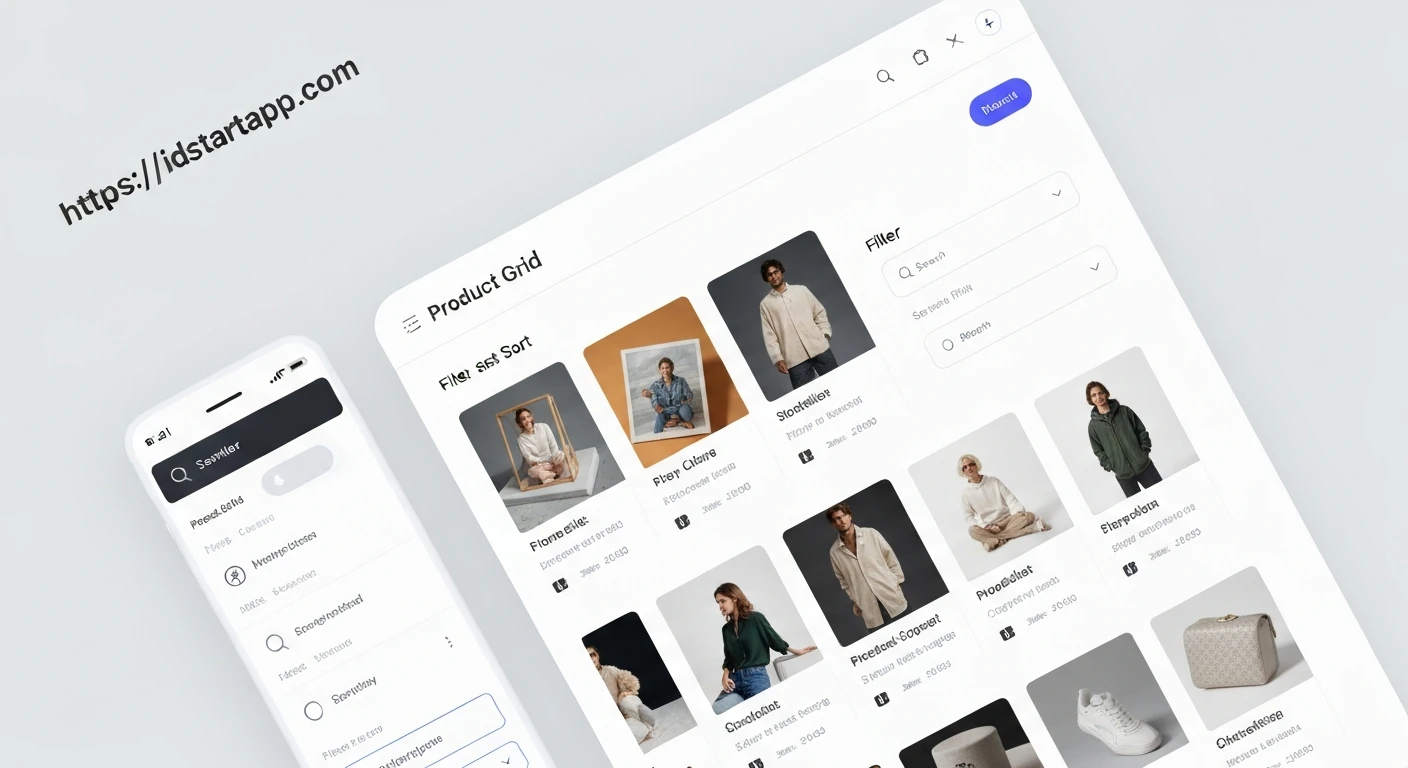

Building a Product Grid Widget with Filtering and Sorting in Flutter
Creating dynamic and interactive product displays is a fundamental requirement for many modern applications, especially in e-commerce, catalogs, or data visualization tools. A common pattern is a product grid that allows users to easily find what they're looking for by filtering and sorting items. This article will guide you through building a reusable product grid widget in Flutter, complete with filtering by category and sorting by price or name.
Core Concepts
Before diving into the code, let's outline the core components we'll be building:
- Product Model: A simple Dart class to represent our product data.
- Dummy Data: A list of sample products to populate our grid.
- Product Item Widget: A small, reusable widget to display individual product information within the grid.
- Product Grid Widget: The main widget responsible for laying out the products, managing filter and sort states, and applying the respective logic.
- Filtering Logic: Functionality to narrow down the displayed products based on criteria (e.g., category).
- Sorting Logic: Functionality to arrange products in a specific order (e.g., price ascending, name alphabetical).
Step 1: Define the Product Model
First, let's create a simple Dart class for our products. This class will hold properties like name, category, price, and a unique ID.
class Product {
  final String id;
  final String name;
  final String category;
  final double price;
  final String imageUrl;

  Product({
    required this.id,
    required this.name,
    required this.category,
    required this.price,
    required this.imageUrl,
  });
}
Step 2: Create Dummy Product Data
For demonstration purposes, we'll use a static list of products. In a real application, this data would typically come from an API call or a local database.
final List<Product> allProducts = [
  Product(id: 'p1', name: 'Laptop Pro', category: 'Electronics', price: 1200.00, imageUrl: 'https://picsum.photos/id/1/200/200'),
  Product(id: 'p2', name: 'Smartphone X', category: 'Electronics', price: 800.00, imageUrl: 'https://picsum.photos/id/2/200/200'),
  Product(id: 'p3', name: 'Desk Chair Ergonomic', category: 'Furniture', price: 250.00, imageUrl: 'https://picsum.photos/id/3/200/200'),
  Product(id: 'p4', name: 'Coffee Maker Deluxe', category: 'Appliances', price: 150.00, imageUrl: 'https://picsum.photos/id/4/200/200'),
  Product(id: 'p5', name: 'Bluetooth Speaker', category: 'Electronics', price: 75.00, imageUrl: 'https://picsum.photos/id/5/200/200'),
  Product(id: 'p6', name: 'Novel Classic', category: 'Books', price: 20.00, imageUrl: 'https://picsum.photos/id/6/200/200'),
  Product(id: 'p7', name: 'T-Shirt Cotton', category: 'Apparel', price: 30.00, imageUrl: 'https://picsum.photos/id/7/200/200'),
  Product(id: 'p8', name: 'Gaming Mouse', category: 'Electronics', price: 60.00, imageUrl: 'https://picsum.photos/id/8/200/200'),
  Product(id: 'p9', name: 'Cookbook Italian', category: 'Books', price: 35.00, imageUrl: 'https://picsum.photos/id/9/200/200'),
  Product(id: 'p10', name: 'Office Lamp LED', category: 'Furniture', price: 90.00, imageUrl: 'https://picsum.photos/id/10/200/200'),
];
Step 3: Create the Product Item Widget
This widget will represent a single product card in our grid. It's a simple Card with an image, name, and price.
import 'package:flutter/material.dart';

// Assuming Product class is defined above

class ProductItem extends StatelessWidget {
  final Product product;

  const ProductItem({Key? key, required this.product}) : super(key: key);

  @override
  Widget build(BuildContext context) {
    return Card(
      elevation: 2,
      child: Column(
        crossAxisAlignment: CrossAxisAlignment.start,
        children: [
          Expanded(
            child: Image.network(
              product.imageUrl,
              fit: BoxFit.cover,
              width: double.infinity,
            ),
          ),
          Padding(
            padding: const EdgeInsets.all(8.0),
            child: Text(
              product.name,
              style: const TextStyle(fontWeight: FontWeight.bold),
              maxLines: 1,
              overflow: TextOverflow.ellipsis,
            ),
          ),
          Padding(
            padding: const EdgeInsets.symmetric(horizontal: 8.0),
            child: Text(
              '\$${product.price.toStringAsFixed(2)}',
              style: const TextStyle(color: Colors.green),
            ),
          ),
          Padding(
            padding: const EdgeInsets.symmetric(horizontal: 8.0, vertical: 4.0),
            child: Text(
              product.category,
              style: const TextStyle(fontSize: 12, color: Colors.grey),
            ),
          ),
        ],
      ),
    );
  }
}
Step 4: Build the Product Grid with Filtering and Sorting
This will be our main widget. We'll use a StatefulWidget to manage the selected filter and sort options, and the list of displayed products. The UI will consist of dropdowns for filter and sort, and a GridView.builder to display the products.
import 'package:flutter/material.dart';
// Import your Product and ProductItem classes

class ProductGridScreen extends StatefulWidget {
  const ProductGridScreen({Key? key}) : super(key: key);

  @override
  State<ProductGridScreen> createState() => _ProductGridScreenState();
}

enum SortOption {
  none,
  priceLowToHigh,
  priceHighToLow,
  nameAsc,
  nameDesc,
}

class _ProductGridScreenState extends State<ProductGridScreen> {
  String? _selectedCategory;
  SortOption _selectedSortOption = SortOption.none;
  List<Product> _filteredProducts = [];

  @override
  void initState() {
    super.initState();
    _applyFiltersAndSort(); // Initialize with all products
  }

  void _applyFiltersAndSort() {
    List<Product> tempProducts = List.from(allProducts); // Start with all products

    // Apply Filter
    if (_selectedCategory != null && _selectedCategory != 'All') {
      tempProducts = tempProducts
          .where((product) => product.category == _selectedCategory)
          .toList();
    }

    // Apply Sort
    switch (_selectedSortOption) {
      case SortOption.priceLowToHigh:
        tempProducts.sort((a, b) => a.price.compareTo(b.price));
        break;
      case SortOption.priceHighToLow:
        tempProducts.sort((a, b) => b.price.compareTo(a.price));
        break;
      case SortOption.nameAsc:
        tempProducts.sort((a, b) => a.name.compareTo(b.name));
        break;
      case SortOption.nameDesc:
        tempProducts.sort((a, b) => b.name.compareTo(a.name));
        break;
      case SortOption.none:
      // No sorting
        break;
    }

    setState(() {
      _filteredProducts = tempProducts;
    });
  }

  @override
  Widget build(BuildContext context) {
    // Extract unique categories for the filter dropdown
    final List<String> categories = ['All', ...allProducts.map((p) => p.category).toSet().toList()];

    return Scaffold(
      appBar: AppBar(
        title: const Text('Product Grid'),
        elevation: 0,
      ),
      body: Column(
        children: [
          Padding(
            padding: const EdgeInsets.all(8.0),
            child: Row(
              mainAxisAlignment: MainAxisAlignment.spaceBetween,
              children: [
                // Category Filter Dropdown
                Expanded(
                  child: DropdownButton<String>(
                    value: _selectedCategory ?? 'All',
                    hint: const Text('Filter by Category'),
                    onChanged: (String? newValue) {
                      setState(() {
                        _selectedCategory = newValue;
                        _applyFiltersAndSort();
                      });
                    },
                    items: categories.map<DropdownMenuItem<String>>((String value) {
                      return DropdownMenuItem<String>(
                        value: value,
                        child: Text(value),
                      );
                    }).toList(),
                  ),
                ),
                const SizedBox(width: 16),
                // Sort By Dropdown
                Expanded(
                  child: DropdownButton<SortOption>(
                    value: _selectedSortOption,
                    hint: const Text('Sort By'),
                    onChanged: (SortOption? newValue) {
                      setState(() {
                        _selectedSortOption = newValue!;
                        _applyFiltersAndSort();
                      });
                    },
                    items: const [
                      DropdownMenuItem(
                        value: SortOption.none,
                        child: Text('None'),
                      ),
                      DropdownMenuItem(
                        value: SortOption.priceLowToHigh,
                        child: Text('Price: Low to High'),
                      ),
                      DropdownMenuItem(
                        value: SortOption.priceHighToLow,
                        child: Text('Price: High to Low'),
                      ),
                      DropdownMenuItem(
                        value: SortOption.nameAsc,
                        child: Text('Name: A-Z'),
                      ),
                      DropdownMenuItem(
                        value: SortOption.nameDesc,
                        child: Text('Name: Z-A'),
                      ),
                    ],
                  ),
                ),
              ],
            ),
          ),
          Expanded(
            child: _filteredProducts.isEmpty
                ? const Center(child: Text('No products found.'))
                : GridView.builder(
                    padding: const EdgeInsets.all(10),
                    gridDelegate: const SliverGridDelegateWithFixedCrossAxisCount(
                      crossAxisCount: 2, // Two columns in the grid
                      childAspectRatio: 0.75, // Adjust item height vs width
                      crossAxisSpacing: 10,
                      mainAxisSpacing: 10,
                    ),
                    itemCount: _filteredProducts.length,
                    itemBuilder: (ctx, i) => ProductItem(
                      product: _filteredProducts[i],
                    ),
                  ),
          ),
        ],
      ),
    );
  }
}
Step 5: Integrating into your Application
To see your product grid in action, simply set ProductGridScreen as the home widget in your MaterialApp:
import 'package:flutter/material.dart';
// Import ProductGridScreen, Product, ProductItem classes

void main() {
  runApp(const MyApp());
}

class MyApp extends StatelessWidget {
  const MyApp({Key? key}) : super(key: key);

  @override
  Widget build(BuildContext context) {
    return MaterialApp(
      title: 'Flutter Product Grid',
      theme: ThemeData(
        primarySwatch: Colors.blue,
        visualDensity: VisualDensity.adaptivePlatformDensity,
      ),
      home: const ProductGridScreen(),
    );
  }
}
Conclusion
You have successfully built a functional product grid widget in Flutter with filtering and sorting capabilities. This setup provides a solid foundation for displaying dynamic lists of items in an interactive manner. You can expand upon this by adding features such as a search bar, price range sliders, multi-select filters, or more advanced state management solutions like Provider, Bloc, or Riverpod for larger applications. The principles of managing local state for filter and sort options, and dynamically updating the displayed list, remain consistent across these enhancements.


